Protect your ActiveCampaign form from bots
In short: To stop spam on an ActiveCampaign form, copy its Full Embed code, run it through the SpamKill Setup Wizard, and paste the protected code on your page. SpamKill checks every submission without a CAPTCHA, and real contacts still land in ActiveCampaign, subscribed to your form's list. It takes about 5 minutes, with no code to edit by hand.
Bots are filling your ActiveCampaign form with fake contacts. Protect the form's Full Embed code with SpamKill and real contacts keep landing in your lists while the spam stops at the door. One thing changes for visitors: the thank-you shows on ActiveCampaign's own page instead of inside the form.
- About 5 min
- 6 steps
- Copy and paste one snippet
Last verified on ActiveCampaign (inline form, Full Embed) with the SpamKill Setup Wizard
What changes, and what doesn't
- Contacts still arrive in ActiveCampaign, subscribed to your form's list
- ActiveCampaign's own required-field checks on the form
- Your page: only the form code changes
- Every submission is checked before it reaches ActiveCampaign
- Visitors see ActiveCampaign's thank-you page instead of a message inside the form
- Undo it anytime by putting your old form code back
Before you start
Have these ready so nothing stops you halfway.
- A SpamKill accountNo account yet? Start a free trial.
- An ActiveCampaign user that can edit formsYou need access to Website › Forms.
- Access to the page your form goes onFor example your WordPress, Webflow or Squarespace editor, or your landing page builder.
Quick setup
For returning users. Each line links to its full step.
- In ActiveCampaign, open Website › Forms, click Start from scratch, pick Inline Form, choose a Form Action and click Create form. Step 1
- Click Integrate, then Copy next to Full Embed. Step 2
- In the SpamKill Console, open Setup Wizard, click No to the WordPress question and paste the code. Step 3
- Click Generate Protected Code, check the email field is email, then click Yes, protect my form. Step 4
- Paste the protected code where the ActiveCampaign code was, publish the page, then click Next. Step 5
- Submit [email protected] and expect an error, then submit a real address and check the contact. Step 6
Create an inline form
Where: ActiveCampaignWebsiteForms
In ActiveCampaign, open Website and click Forms (1). Click Start from scratch. Name the form, keep Inline Form selected (2), and choose a Form Action, such as subscribing to a list (3). Click Create form, then add the fields you need.
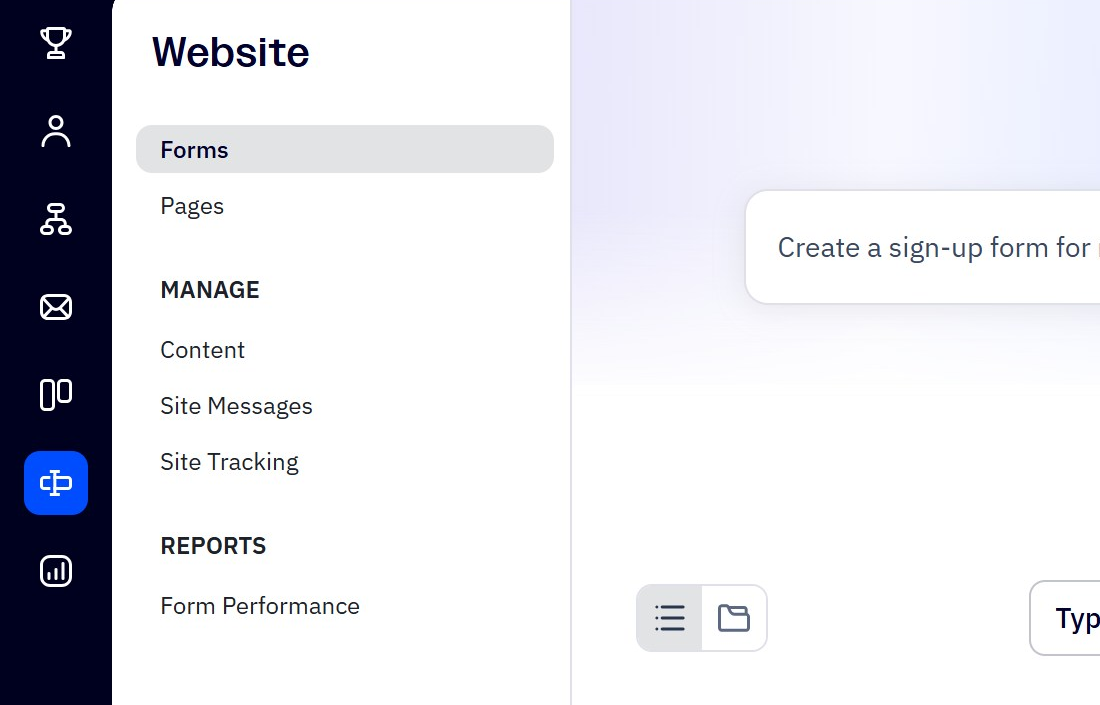
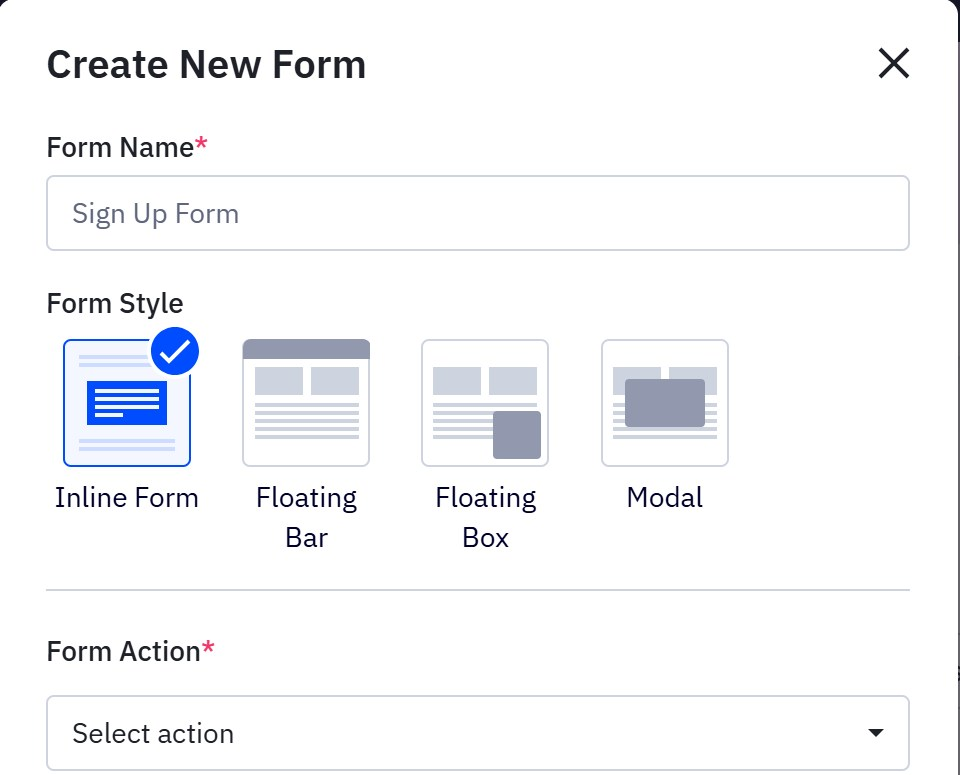
You should see: The form editor, with your form's fields on screen.
Already have a form?
Click Edit form next to it in the Forms list and go on to step 2.
Copy the Full Embed
Where: ActiveCampaignYour formIntegrate
In the form editor, click Integrate (1). On the Embed tab, click Copy next to Full Embed (2).
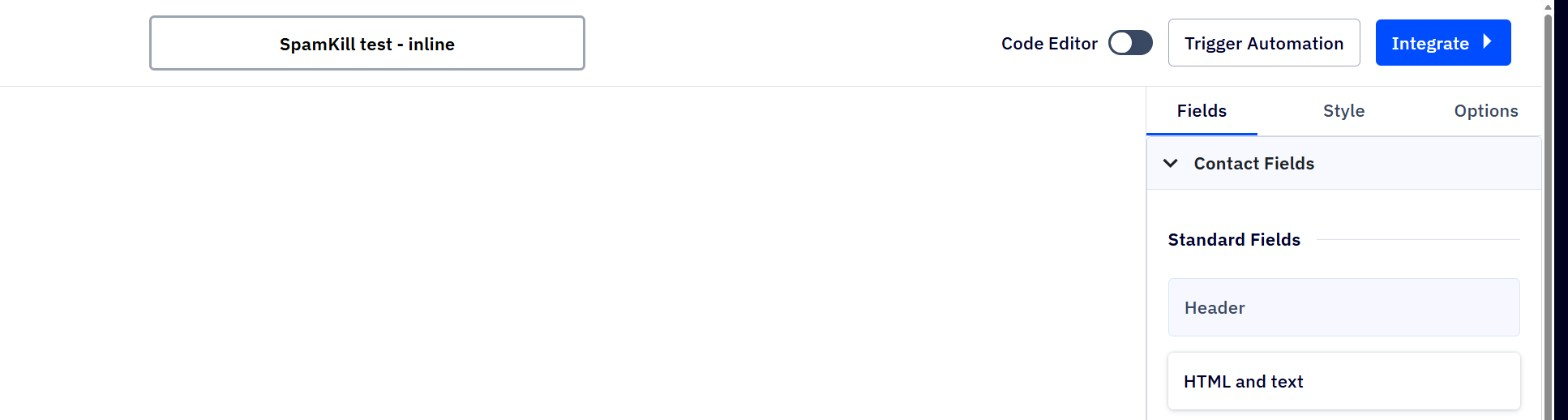
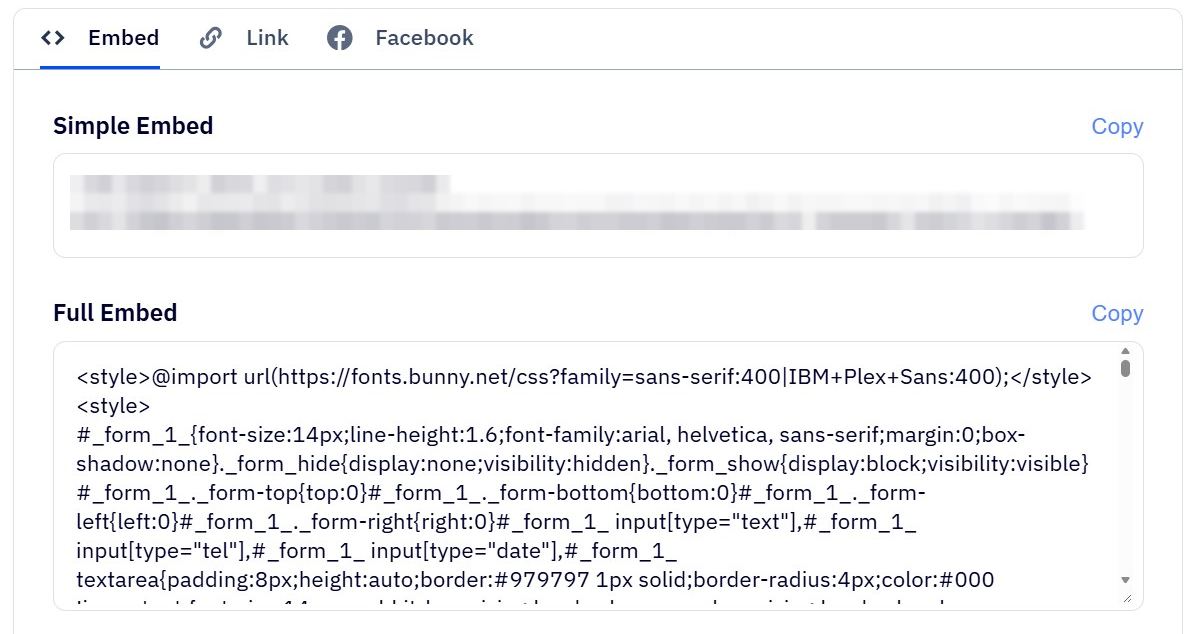
You should see: The Full Embed code on your clipboard. It starts with <style>@import.
Why not the Simple Embed?
The Simple Embed is a script that draws the form after the page loads, so there's no form code for SpamKill to protect. The Full Embed is the form itself.
Paste it into the Setup Wizard
Where: SpamKill ConsoleSetup Wizard
In the SpamKill Console, click Setup Wizard in the sidebar. If your site isn't on WordPress, click No under Is your website developed in WordPress?. Paste the ActiveCampaign code into the box (1).
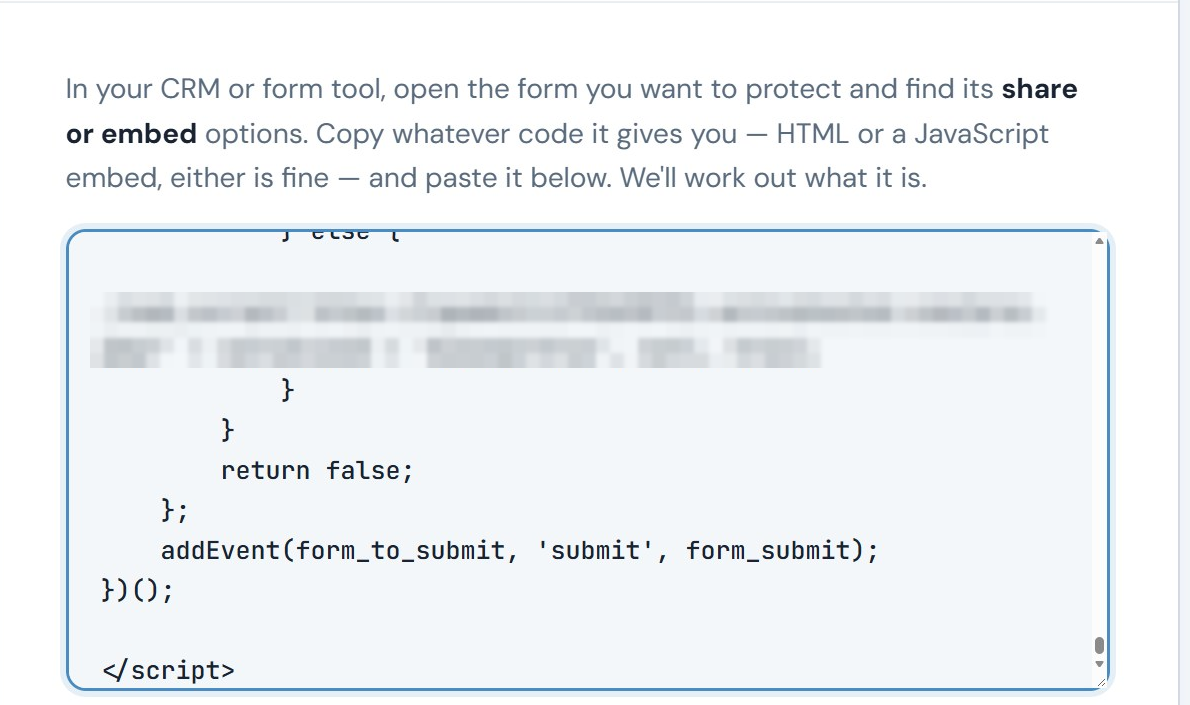
You should see: Tips under the box, then Please select the email field input showing email.
Is this form already live on your site?
Create a new form in ActiveCampaign and paste its code instead. You can delete the old form once the new one is set up.
Generate the protected code
Where: SpamKill ConsoleSetup Wizard
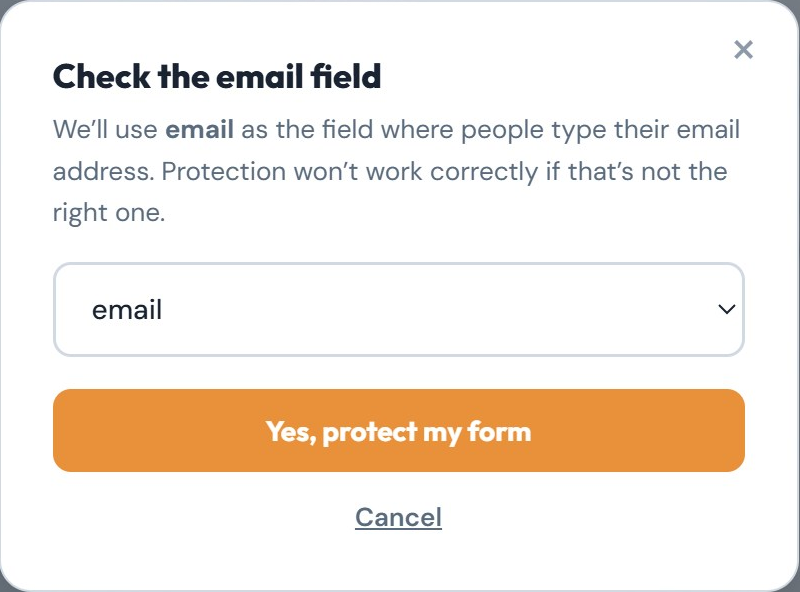
Click Generate Protected Code. SpamKill asks you to check the email field: it should be email (1). Click Yes, protect my form (2).
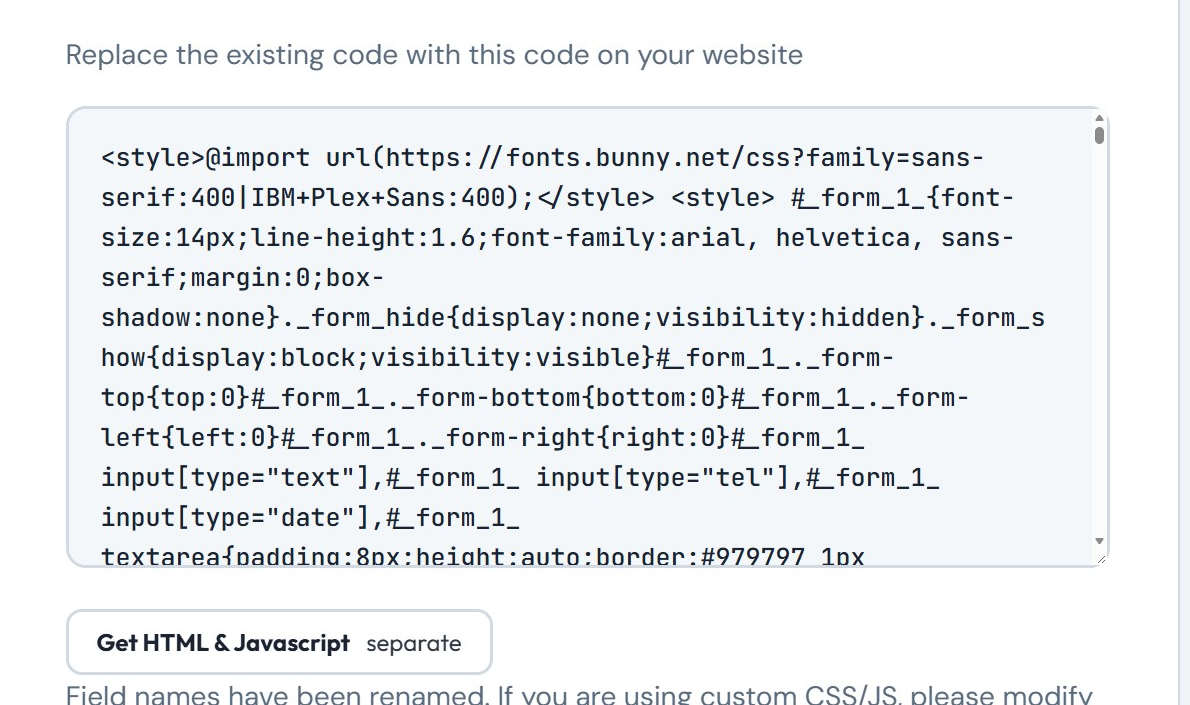
You should see: Replace the existing code with this code on your website, above your protected code.
Swap the code on your page
Where: Your website editor
Copy the protected code from the box. Open the page with your ActiveCampaign form in your website editor. Delete the ActiveCampaign form code and paste the SpamKill code in its place. Save and publish the page. Then click Next in the wizard.
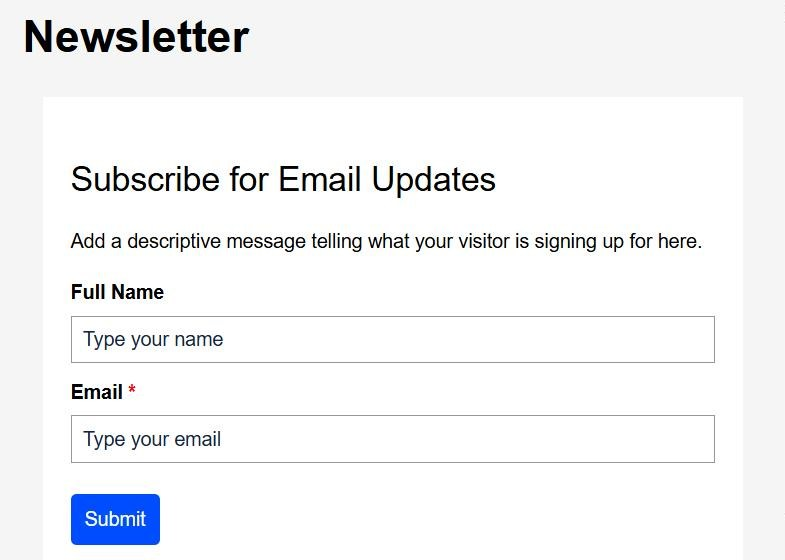
You should see: Your page shows the same form as before.
Does your site style the form by field name?
SpamKill renames each field, and the wizard lists the old and new names. Update any CSS or scripts that point at the old names.
Test it twice
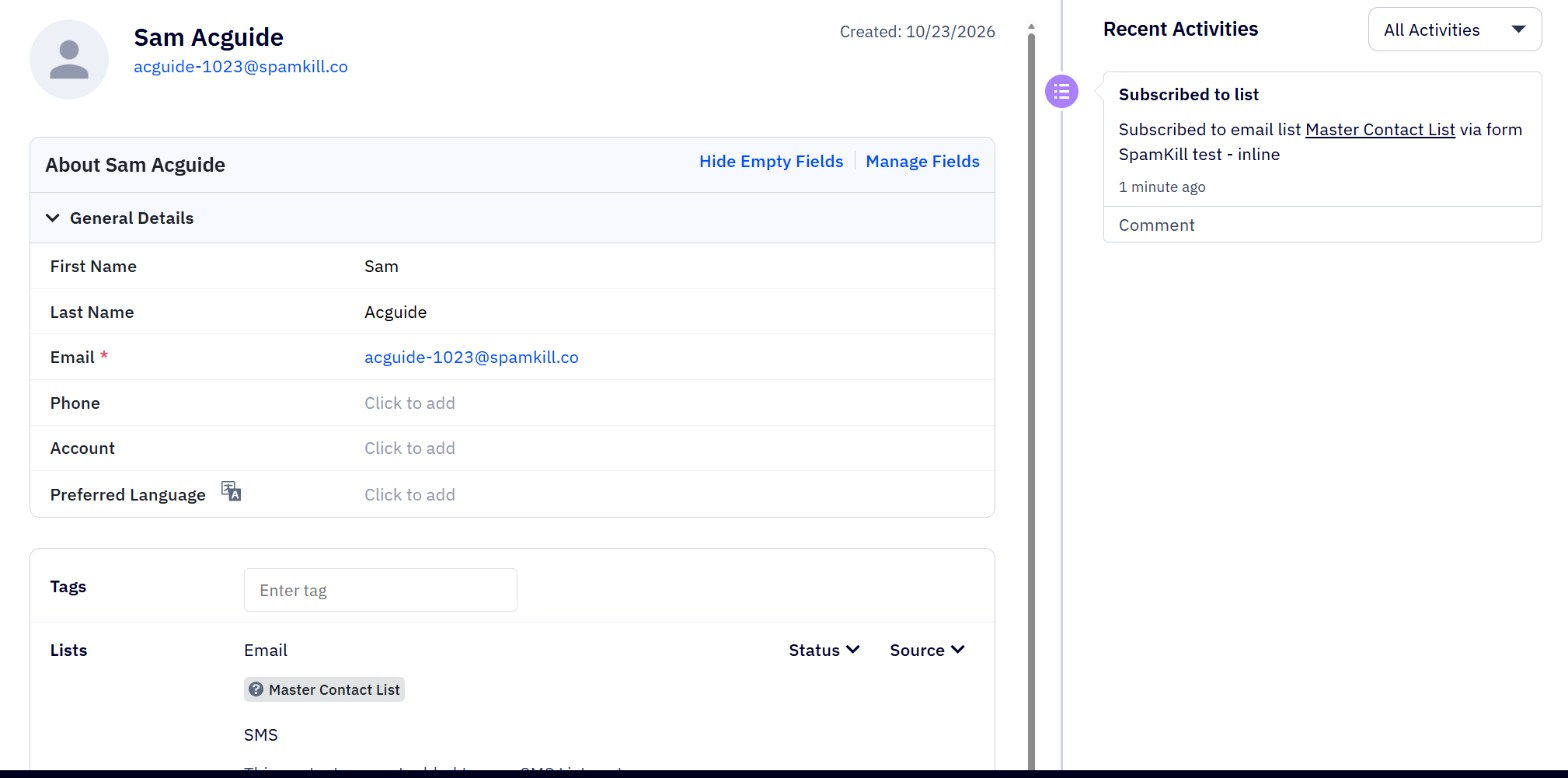
Open your page in a private window. Submit the form with [email protected] (1). Then submit it again with a name and an address you can recognise. ActiveCampaign shows its thank-you page (2).
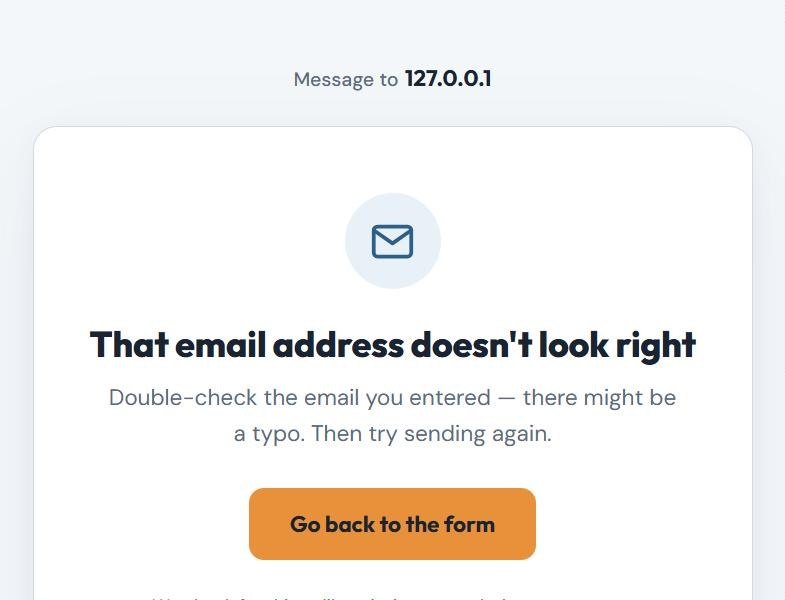

The first try shows That email address doesn't look right.
The second try appears in Contacts, with Subscribed to list in its activity.
Back in the wizard, click Both Tests Passed.
You should see: Thanks for signing up! after the second try.
Your ActiveCampaign form is protected
- Bots are stopped before they reach ActiveCampaign.
- Real leads arrive exactly as before, with no extra steps for them.
- Every block is logged in your SpamKill dashboard.
Something not working?
Find what you're seeing.
Real contacts aren't showing up in ActiveCampaign
Check the live page has the protected code: its form sends to protect.spamkill.dev. If you changed the form in ActiveCampaign, copy its Full Embed again and repeat steps 3 to 5.
A real visitor was told their email doesn't look right
SpamKill checks for missing @ symbols, extra spaces and common typos. The visitor can click Go back to the form, fix the address and send again.
The thank-you no longer shows inside the form
That's expected. With SpamKill in front, the form submits normally, so ActiveCampaign shows its thank-you on its own page.
Changed your mind? Undo in under a minute
- Open the page in your website editor.
- Delete the SpamKill code and paste your original ActiveCampaign Full Embed back.
- Save and publish the page. Your form is back to how it was.
Thanks! Glad your form is protected.
Sorry about that. Tell us which step tripped you up and we'll fix the guide.
Stuck? We'll set it up with you.
Free setup help for every plan. Send us a message and we'll walk through your ActiveCampaign form with you.
Get setup help