Protect your Klaviyo form from bots
In short: To stop spam on a hand-coded Klaviyo signup form, put your list ID into the form code from this guide, run it through the SpamKill Setup Wizard and paste the protected code on your page. SpamKill checks every signup without a CAPTCHA and real subscribers still join your Klaviyo list, with single or double opt-in. Forms built in Klaviyo's sign-up form builder can't be protected this way yet. It takes about 10 minutes.
Bots are signing fake addresses up to your Klaviyo list. Protect a hand-coded Klaviyo signup form with SpamKill and real subscribers keep joining your list. One limitation to know first: this works for a plain HTML form that posts to your list, not for pop-ups and embeds made in Klaviyo's sign-up form builder, and visitors see Klaviyo's own confirmation page after signing up. Want your own fields and design? Build the form in SpamKill and pass signups to Klaviyo with Make.com or Zapier.
- About 10–20 min
- 2 ways to set up
- Copy and paste one snippet
Last verified on Klaviyo Free (hand-coded HTML form) with the SpamKill Setup Wizard
What changes, and what doesn't
- Subscribers still join your Klaviyo list
- Your list's opt-in setting, single or double
- Your flows and existing profiles
- Every signup is checked before it reaches Klaviyo
- Visitors see Klaviyo's confirmation page after signing up
- Undo it anytime by putting your old form code back
Before you start
Have these ready so nothing stops you halfway.
- A SpamKill accountNo account yet? Start a free trial.
- A Klaviyo listThe list new subscribers should join, under Audience › Lists & segments.
- A way to edit your page's HTMLYou'll paste HTML code, so use an HTML or code block in your site editor.
How do you want to set up your Klaviyo form?
Want your own fields and design without editing code? Pick the second option.
Pick the option that matches your form to see its steps.
Protect the Klaviyo form code
Not your setup? Choose another optionQuick setup
For returning users. Each line links to its full step.
- In Klaviyo, open Audience › Lists & segments, click your list, open Settings and copy the List ID. Step 1
- On your list, open Consent pages, click Customize for this List, then Edit Page on Subscribe page and edit the Confirmation page and Success page tabs. Step 2
- Copy the code below into a text editor and replace YOUR_LIST_ID with your list ID. Step 3
- In the SpamKill Console, open Setup Wizard, click No to the WordPress question and paste the code. Step 4
- Click Generate Protected Code, check the email field is email, then click Yes, protect my form. Step 5
- Copy the protected code, paste it where the signup form should go, publish the page, then click Next. Step 6
- Submit [email protected] and expect an error, then submit a real address and check your list's members. Step 7
Find your list ID
Where: KlaviyoAudienceLists & segments
In Klaviyo, click Audience › Lists & segments in the sidebar (1) and click the list new subscribers should join (2). Open the Settings tab (3). Copy the List ID with the copy button next to it (4).
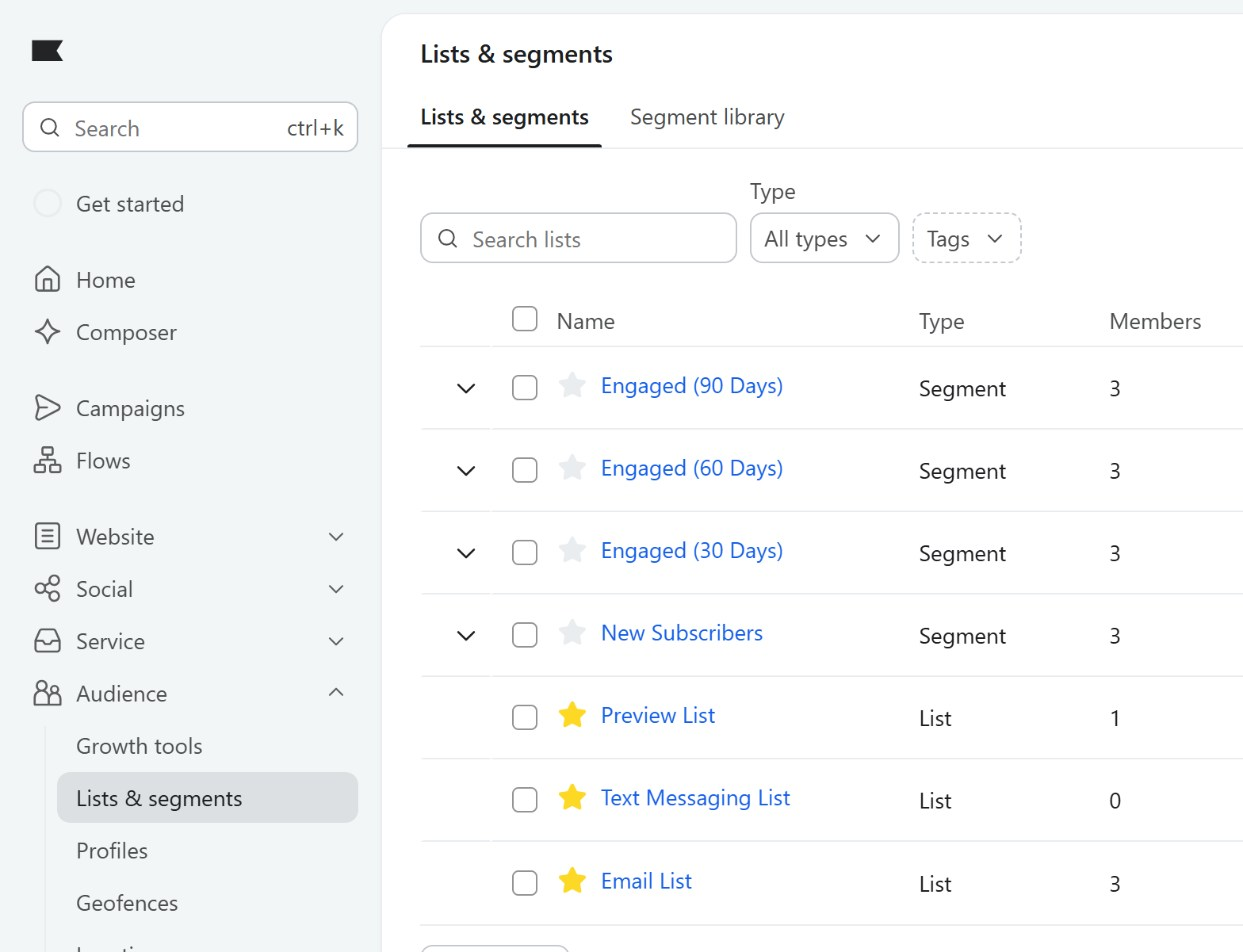
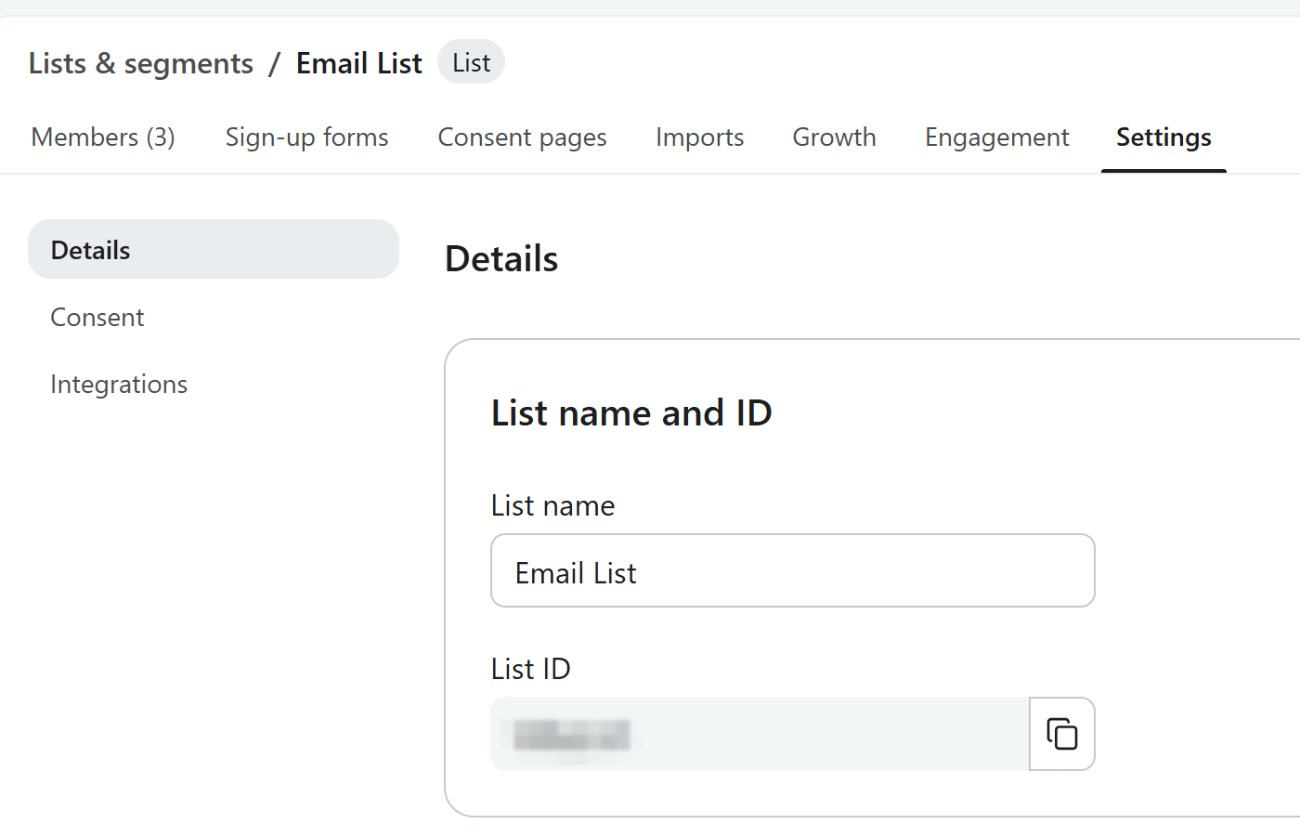
You should see: A short code of letters and numbers on your clipboard, such as AbC12x.
Edit Klaviyo's thank-you pages
Where: KlaviyoLists & segmentsYour listConsent pages
This form can't send subscribers to a page on your site: Klaviyo always shows its own pages after it. You can make them yours. On your list, click the Consent pages tab, then Customize for this List. Click Edit Page on Subscribe page. Edit the wording on the Confirmation page tab (shown with double opt-in) and the Success page tab, then click Publish.
You should see: Your own wording on Klaviyo's Check your inbox and You've been subscribed pages.
Copy the form code
Copy this form code into a text editor. Replace YOUR_LIST_ID with the list ID you copied, keeping the quotes around it. You can change the label and button text. The code has simple styling built in: labels above full-width boxes and a blue button. To match your site, change the colours and sizes in the <style> block, or delete the block and style the sk-form classes in your own CSS.
<style>
  .sk-form { max-width: 480px; }
  .sk-form-label { display: block; margin: 0 0 6px; font-size: 15px; font-weight: 600; line-height: 1.4; }
  .sk-form-input { display: block; width: 100%; box-sizing: border-box; margin: 0 0 16px; padding: 10px 12px; border: 1px solid #c5cbd3; border-radius: 6px; background: #fff; color: #1f2937; font: inherit; font-size: 16px; line-height: 1.4; }
  .sk-form-input:focus { border-color: #2563eb; outline: 2px solid #2563eb; outline-offset: 1px; }
  .sk-form-textarea { min-height: 120px; resize: vertical; }
  .sk-form-button { display: inline-block; padding: 12px 24px; border: 0; border-radius: 6px; background: #2563eb; color: #fff; font: inherit; font-size: 16px; font-weight: 600; cursor: pointer; }
  .sk-form-button:hover { background: #1d4ed8; }
</style>
<form class="sk-form" action="//manage.kmail-lists.com/subscriptions/subscribe" method="POST" novalidate="novalidate">
  <input type="hidden" name="g" value="YOUR_LIST_ID">
  <label class="sk-form-label" for="k_id_email">Email address</label>
  <input class="sk-form-input" type="email" id="k_id_email" name="email" placeholder="[email protected]">
  <button class="sk-form-button" type="submit">Subscribe</button>
</form>
You should see: The code with your list ID in value="…", and no <script> tags.
Already have a hand-coded Klaviyo form?
You can use your own code instead. Delete the klaviyo_subscribe.js script tag and the KlaviyoSubscribe.attachToForms script first: they send the form in the background, and with them on the page the signup is lost.
Paste it into the Setup Wizard
Where: SpamKill ConsoleSetup Wizard
In the SpamKill Console, click Setup Wizard in the sidebar. If your site isn't on WordPress, click No under Is your website developed in WordPress?. Paste the form code with your list ID into the box (1).
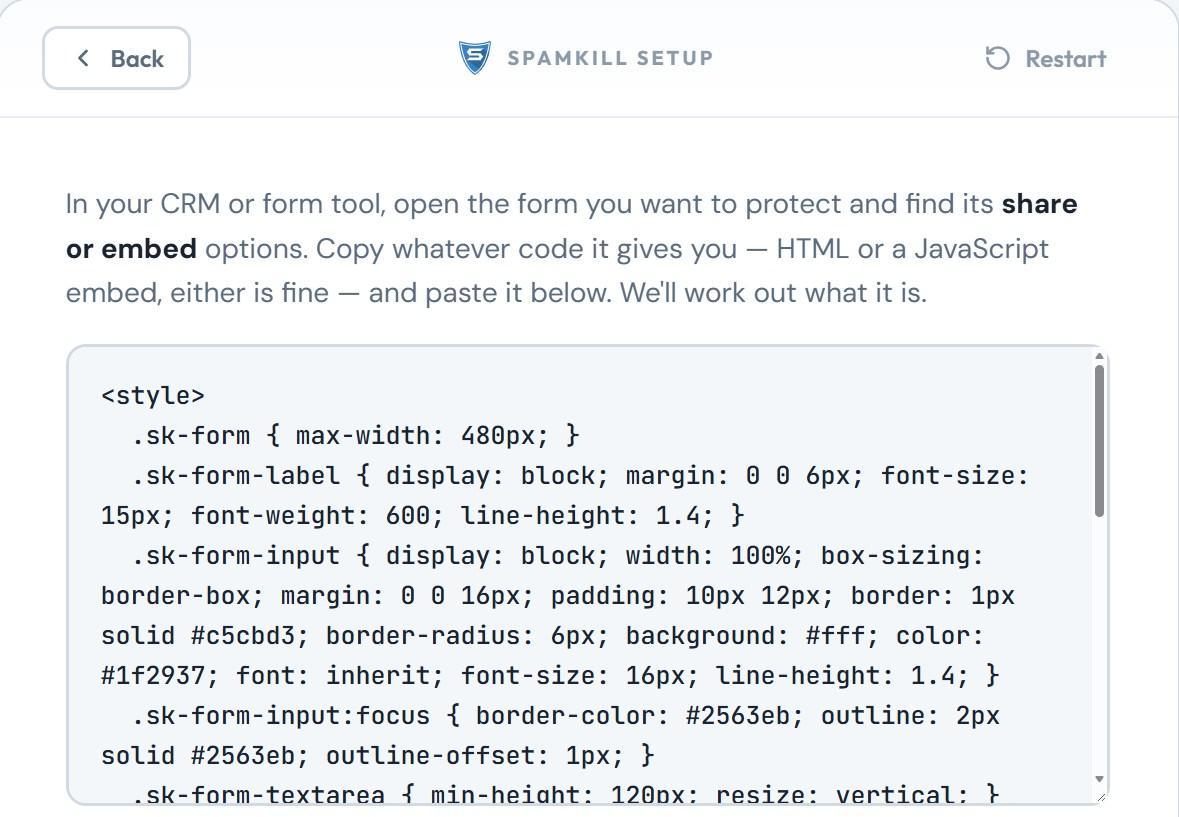
You should see: Tips under the box, then Please select the email field input showing email.
Generate the protected code
Where: SpamKill ConsoleSetup Wizard
Click Generate Protected Code. SpamKill asks you to check the email field: it should be email (1). Click Yes, protect my form (2).
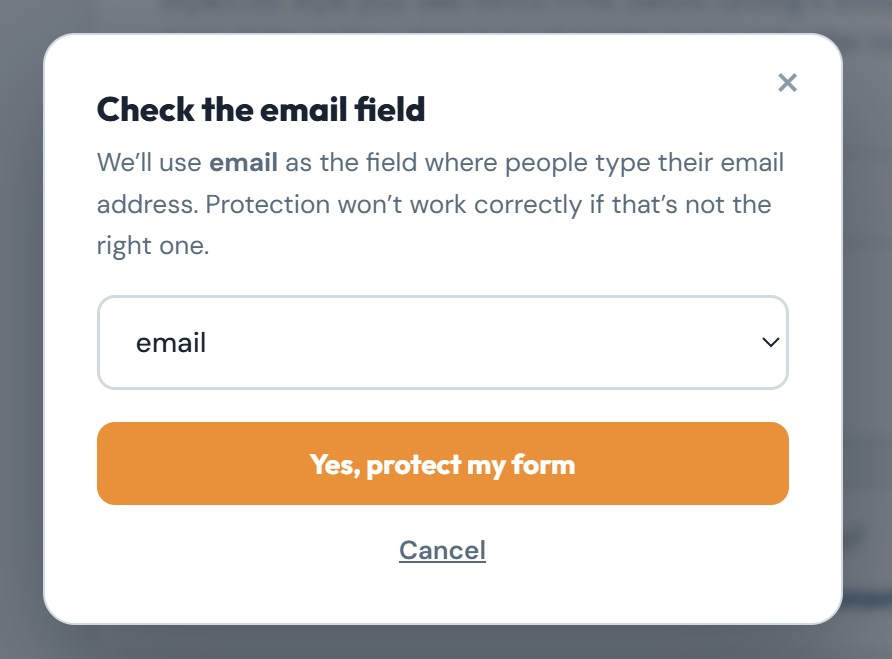
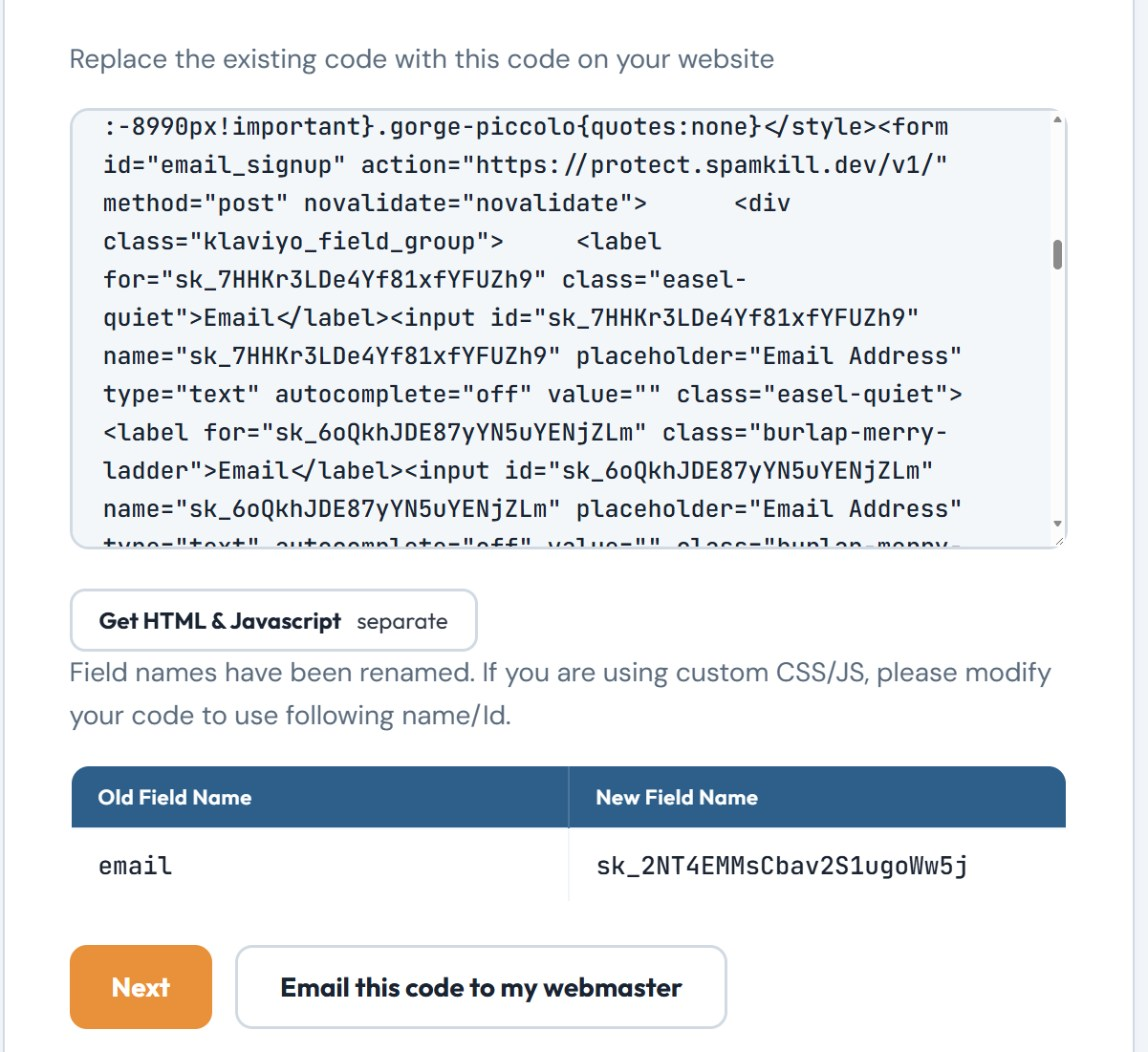
You should see: Replace the existing code with this code on your website, above your protected code.
Put the code on your page
Where: Your website editor
Copy the protected code. Open the page for your signup form in your website editor and paste the code where the form should go, replacing any old Klaviyo form code. Save and publish the page. Then click Next in the wizard.
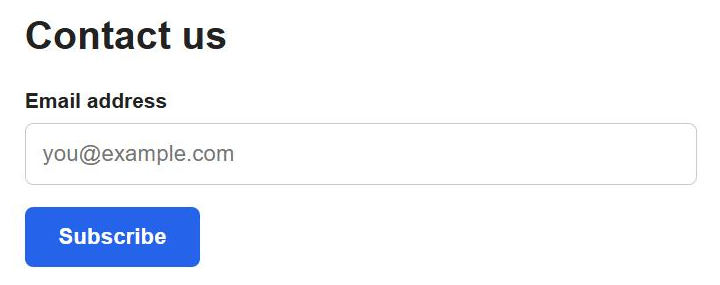
You should see: Your page shows an Email address box and a blue Subscribe button.
Want the form to match your site?
Change the colours and sizes in the <style> block before you run the code through the wizard, or delete the block and style the sk-form, sk-form-label, sk-form-input and sk-form-button classes in your own CSS. SpamKill keeps these classes, but renames each field's name and id.
Test it twice
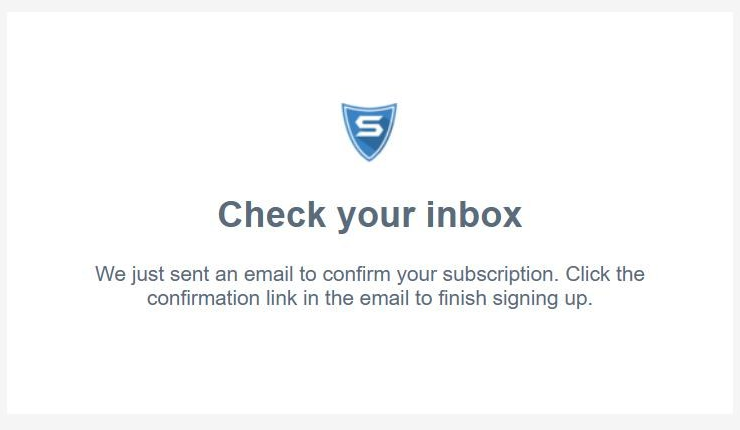
Open your page in a private window. Submit the form with [email protected] (1). Then submit it again with an address whose inbox you can open. With double opt-in, Klaviyo shows Check your inbox (2): click the link in Klaviyo's email and the address joins your list (3). With single opt-in, Klaviyo shows You've been subscribed and the address joins straight away.
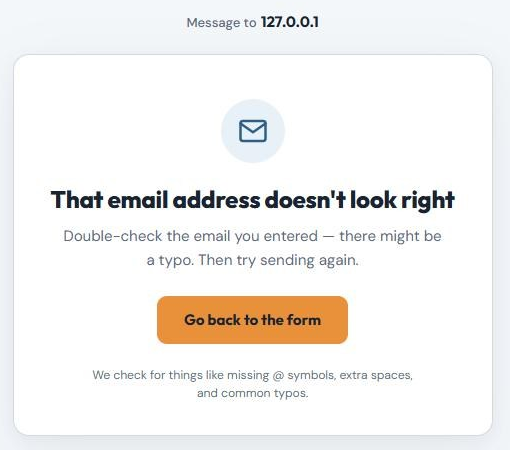

The first try shows That email address doesn't look right.
The second try appears under your list's Members, after the confirmation click if the list uses double opt-in.
Back in the wizard, click Both Tests Passed.
You should see: Check your inbox (double opt-in) or You've been subscribed (single opt-in) after the second try.
Your Klaviyo form is protected
- Bots are stopped before they reach Klaviyo.
- Real leads arrive exactly as before, with no extra steps for them.
- Every block is logged in your SpamKill dashboard.
Something not working?
Find what you're seeing.
The form submits, but nobody joins my list
Check that the hidden g field holds your list ID from step 1, and that the page has no klaviyo_subscribe.js script. With double opt-in, the address only joins after the confirmation link is clicked.
Klaviyo shows "Something is amiss"
The form reached Klaviyo without going through SpamKill. Make sure the live page has the protected code from step 5, not the code from step 3.
A real visitor was told their email doesn't look right
SpamKill checks for missing @ symbols, extra spaces and common typos. The visitor can click Go back to the form, fix the address and send again.
I use Klaviyo's sign-up form builder
Those forms load with Klaviyo's script, so the Setup Wizard can't protect them. Use the form code from step 3 in their place, or build the form in SpamKill (the second option at the top of this page).
Changed your mind? Undo in under a minute
- Open the page in your website editor.
- Delete the SpamKill code and paste your original form code back.
- Save and publish the page. Your form is back to how it was.
Build a SpamKill form for Klaviyo
Not your setup? Choose another optionQuick setup
For returning users. Each line links to its full step.
- In SpamKill, open Form Builder, click Create form and add your fields on the Build tab. Step 1
- On the Design tab, under Confirmation, choose Redirect to a URL and enter your thank-you page. Step 2
- In Make.com, start a scenario with a Custom webhook module. On SpamKill's Deliver tab, click Make.com, paste its address and click Connect. Step 3
- In Make, add a Klaviyo module that adds a profile to your list, map the email field and turn the scenario on. Step 4
- Click Publish form, copy the code from the Embed tab and paste it where the form should appear. Step 5
Create your SpamKill form
Where: SpamKill ConsoleForm BuilderForms
In the SpamKill Console, open Form Builder and click Create form. On the Build tab, add the fields you want in Klaviyo, including an email field. Change colours and fonts on the Design tab.
You should see: Your form's fields on the Build tab.
Set your thank-you page
Where: Form BuilderYour formDesign
On the Design tab, find Confirmation. Choose Redirect to a URL and enter the full address of your thank-you page. To show a message instead, keep Built-in success page or choose Custom thank-you page.
You should see: Your thank-you page's address under Confirmation.
Connect a Make.com webhook
Where: Form BuilderYour formDeliver
In Make.com, create a scenario that starts with a Custom webhook module and copy the address it gives you. In SpamKill, open your form's Deliver tab, click Make.com under Or deliver to a webhook (Zapier, Make.com, or your own), paste the address and click Connect.
You should see: Make.com as the form's delivery on the Deliver tab.
Using Zapier instead?
Start a Zap with Webhooks by Zapier › Catch Raw Hook, click Zapier on the Deliver tab and paste its URL. Webhooks by Zapier needs a paid Zapier plan, and the raw hook passes each lead as unparsed JSON, so add a Code by Zapier step to read the fields before the Klaviyo action.
Send each lead to Klaviyo
In your Make scenario, add a Klaviyo module after the webhook that adds a profile to your list. Submit your SpamKill form once so Make can see the fields: each one arrives under a key named after its label, such as email. Map the email and any other fields, then turn the scenario on.
You should see: Your test submission as a new profile on your list in Klaviyo.
Publish and add it to your page
Where: Form BuilderYour formEmbed
On the Deliver tab, click Publish form. On the Embed tab, click Copy, then paste the code on your page where the form should appear, replacing any old form code. Publish the page and submit the form once with your own details.
You land on your thank-you page.
Your test appears as a new profile on your list.
You should see: Your thank-you page after you submit.
Your Klaviyo form is protected
- Bots are stopped before they reach Klaviyo.
- Real leads arrive exactly as before, with no extra steps for them.
- Every block is logged in your SpamKill dashboard.
Something not working?
Find what you're seeing.
Leads show in SpamKill but not in Klaviyo
Check that your Make scenario is turned on, then open its history and look for an error on the Klaviyo step. Most often a field isn't mapped, or the email field is empty.
A real visitor was told their email doesn't look right
SpamKill checks for missing @ symbols, extra spaces and common typos. The visitor can click Go back to the form, fix the address and send again.
Changed your mind? Undo in under a minute
- Open the page in your website editor.
- Delete the SpamKill code and paste your original form code back.
- Save and publish the page. Your form is back to how it was.
- Optional: turn off the Make scenario.
Thanks! Glad your form is protected.
Sorry about that. Tell us which step tripped you up and we'll fix the guide.
Stuck? We'll set it up with you.
Free setup help for every plan. Send us a message and we'll walk through your Klaviyo form with you.
Get setup help