What changes, and what doesn't
- Leads still arrive in HubSpot as contacts
- Your HubSpot properties, lists and existing contacts
- The look of your page: the SpamKill form takes its place
- A SpamKill form in place of the HubSpot embed, with the same fields
- Every submission is checked before it reaches HubSpot
- Undo it anytime by putting the HubSpot embed back
Before you start
Have these ready so nothing stops you halfway.
- A SpamKill accountNo account yet? Start a free trial.
- A HubSpot login that can connect appsYou approve SpamKill once, on HubSpot's own sign-in screen.
- Access to the page your HubSpot form is onFor example your WordPress, Webflow or Squarespace editor, where the HubSpot embed code is pasted today.
- A list of your HubSpot form's fieldsOpen the form in HubSpot under Marketing › Forms and note each field, so you can rebuild it.
Quick setup
For returning users. Each line links to its full step.
- In SpamKill, open Form Builder and click Create form. Step 1
- On the Build tab, add the same fields your HubSpot form has. Step 2
- On the Deliver tab, click Connect next to HubSpot and choose your HubSpot account. Step 3
- Check each field maps to a HubSpot property, click Save mapping, then Publish form. Step 4
- Copy the code from the Embed tab and paste it where the HubSpot embed code was. Step 5
- Submit your live form once, then check SpamKill and HubSpot. Step 6
Create your SpamKill form
Where: SpamKill ConsoleForm BuilderForms
In the SpamKill Console, click Form Builder in the sidebar, then Create form. Pick the starting point closest to your HubSpot form (1), give it a name, and click Create (2).
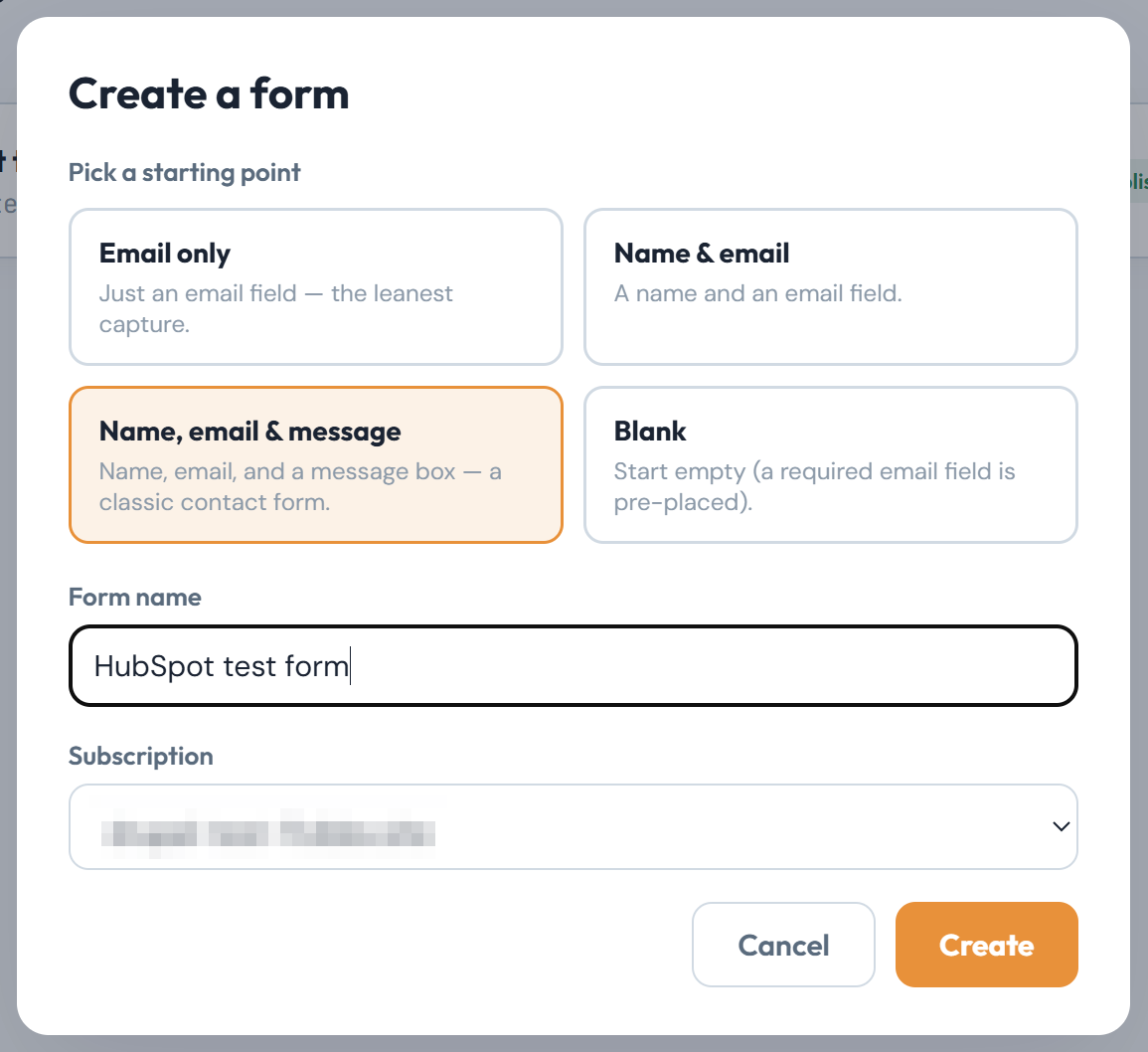
You should see: Your new form open on the Build tab, marked Draft.
Match your HubSpot fields
Where: Form BuilderYour formBuild
Add each field your HubSpot form asks for from Common fields (1). Reorder or remove fields in the form on the right (2). Every form keeps one required Email field.
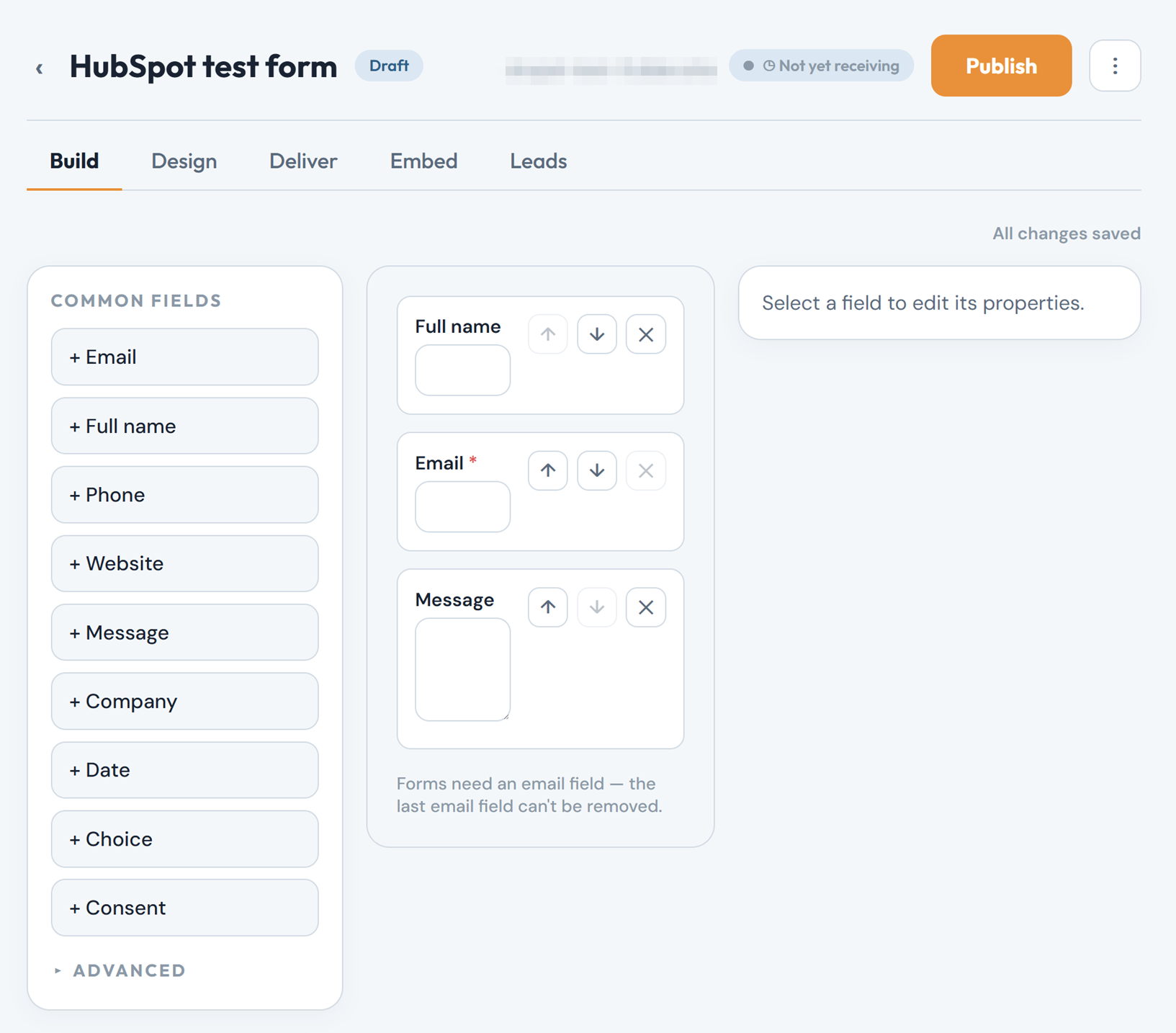
You should see: The same fields as your HubSpot form, with All changes saved at the top right.
Want it to look like your old form?
Use the Design tab to pick colours, font and label position. Style changes apply when you publish.
Connect HubSpot
Where: Form BuilderYour formDeliver
Open the Deliver tab and click Connect next to HubSpot (1). HubSpot opens its own sign-in screen. Pick the HubSpot account your leads should go to (2), then click Choose Account.
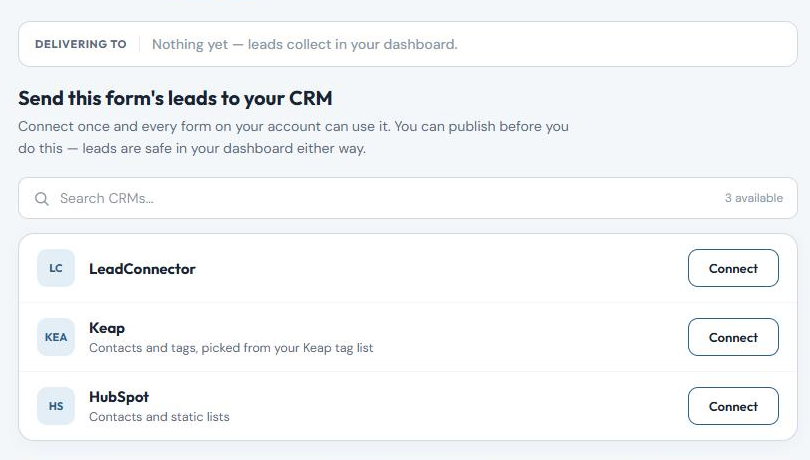
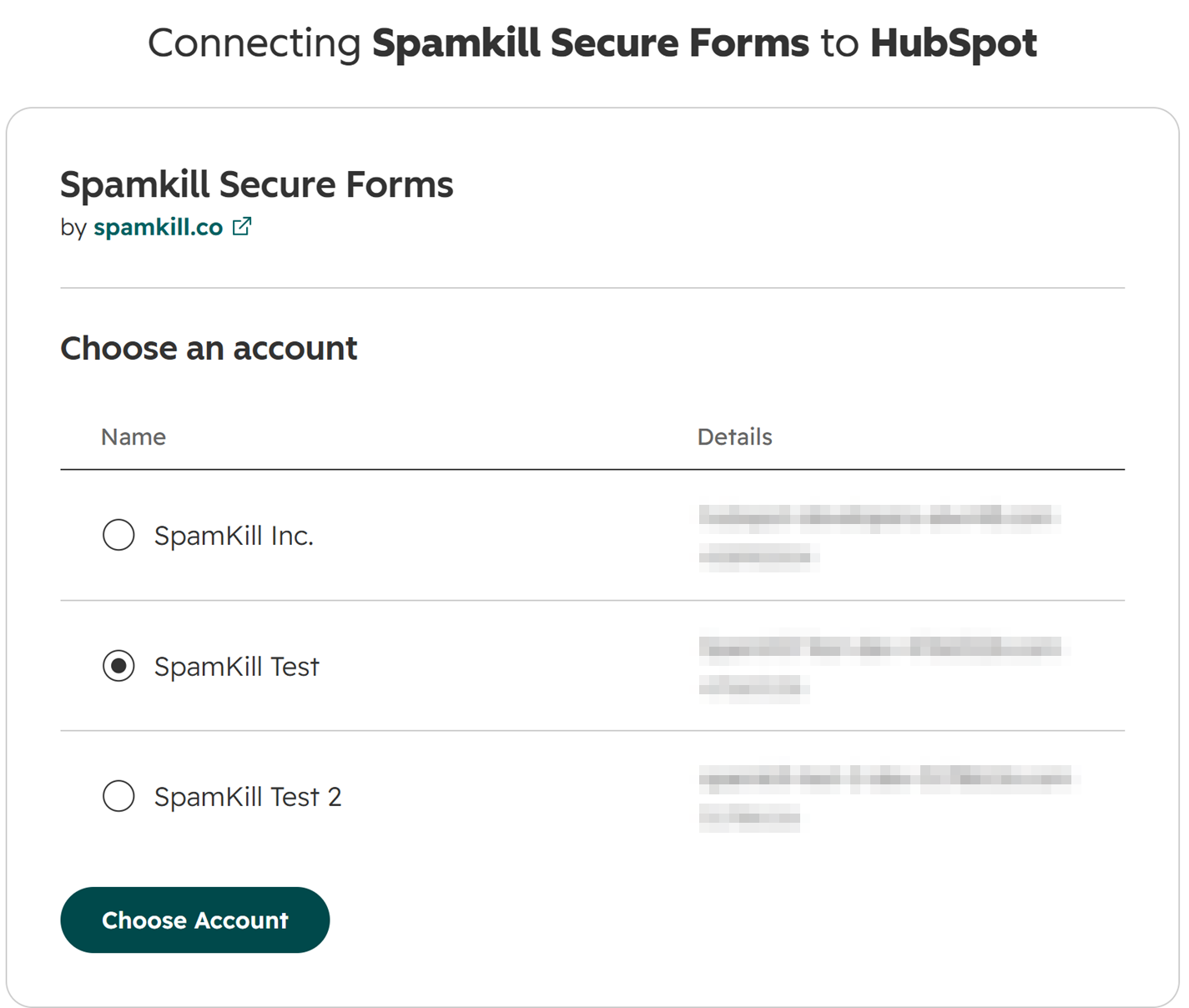
You should see: Back in SpamKill, a green Connected. message and HubSpot · Already connected. Click Use this.
Several HubSpot accounts in the list?
Pick the one whose Contacts your sales team works from. The account ID shown on that screen also appears in HubSpot's address bar after app.hubspot.com/contacts/.
Check the mapping and publish
Where: Form BuilderYour formDeliver
SpamKill matches most fields for you, and splits Full name into first and last name (1). Look over anything under Needs a quick look (2) and pick the HubSpot property it belongs in. Then click Save mapping and Publish form.
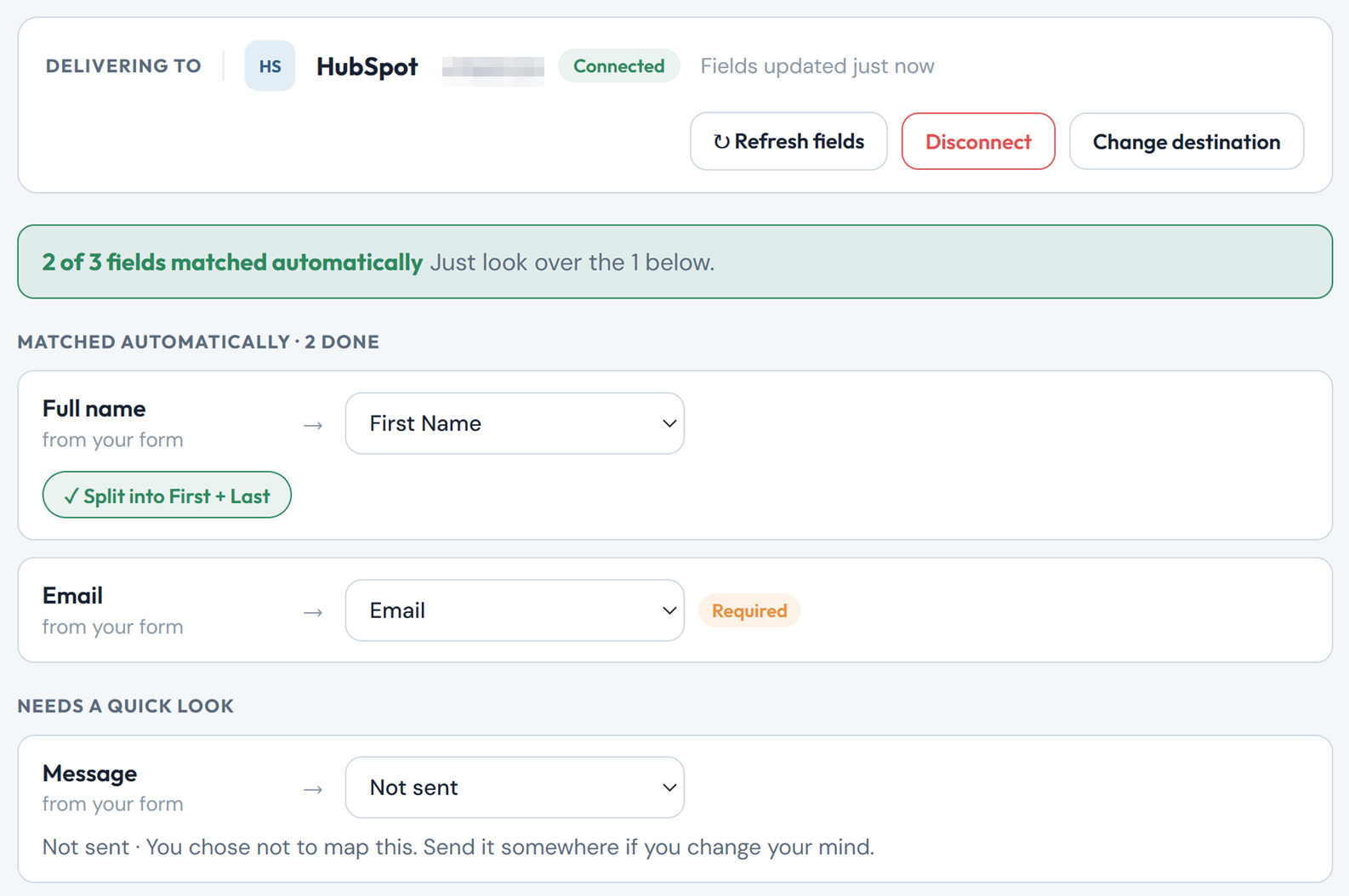
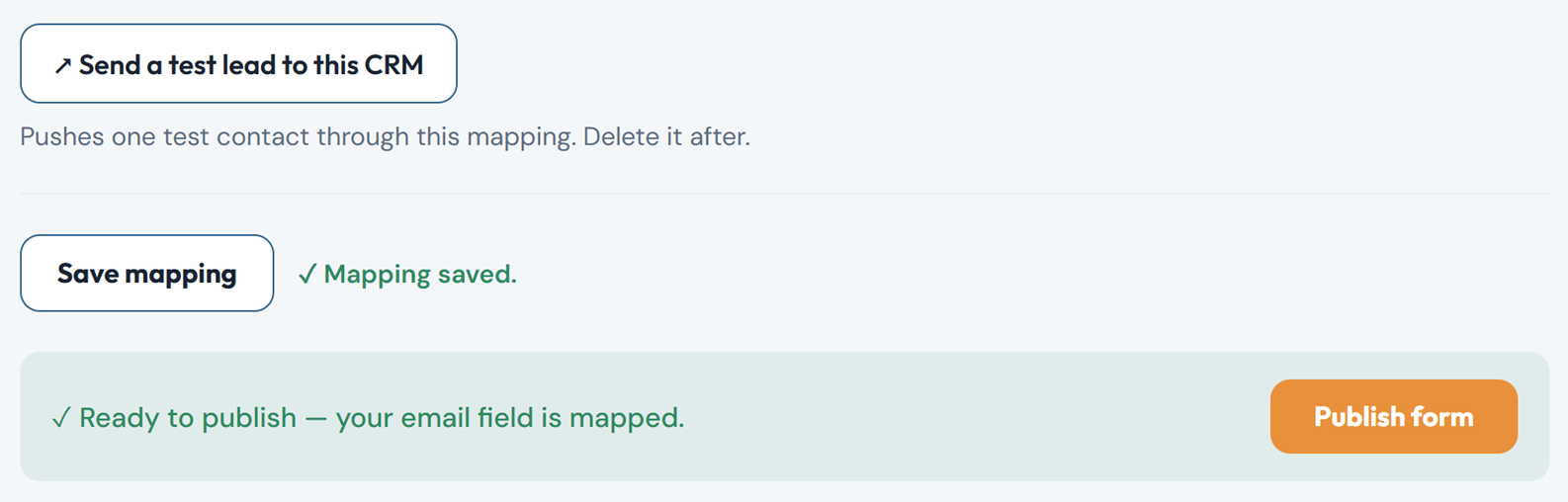
You should see: Mapping saved., then the form's badge changes from Draft to Published.
A field says Not sent?
It won't reach HubSpot. Pick a HubSpot property in its dropdown, or leave it if you don't need it in HubSpot. Every lead is still kept under Leads in SpamKill.
Swap the embed on your page
Where: Form BuilderYour formEmbed
On the Embed tab, click Copy (1). Open the page with your HubSpot form in your website editor. Delete the HubSpot embed code, which starts with a script from js.hsforms.net, and paste the SpamKill code in its place. Save and publish the page.
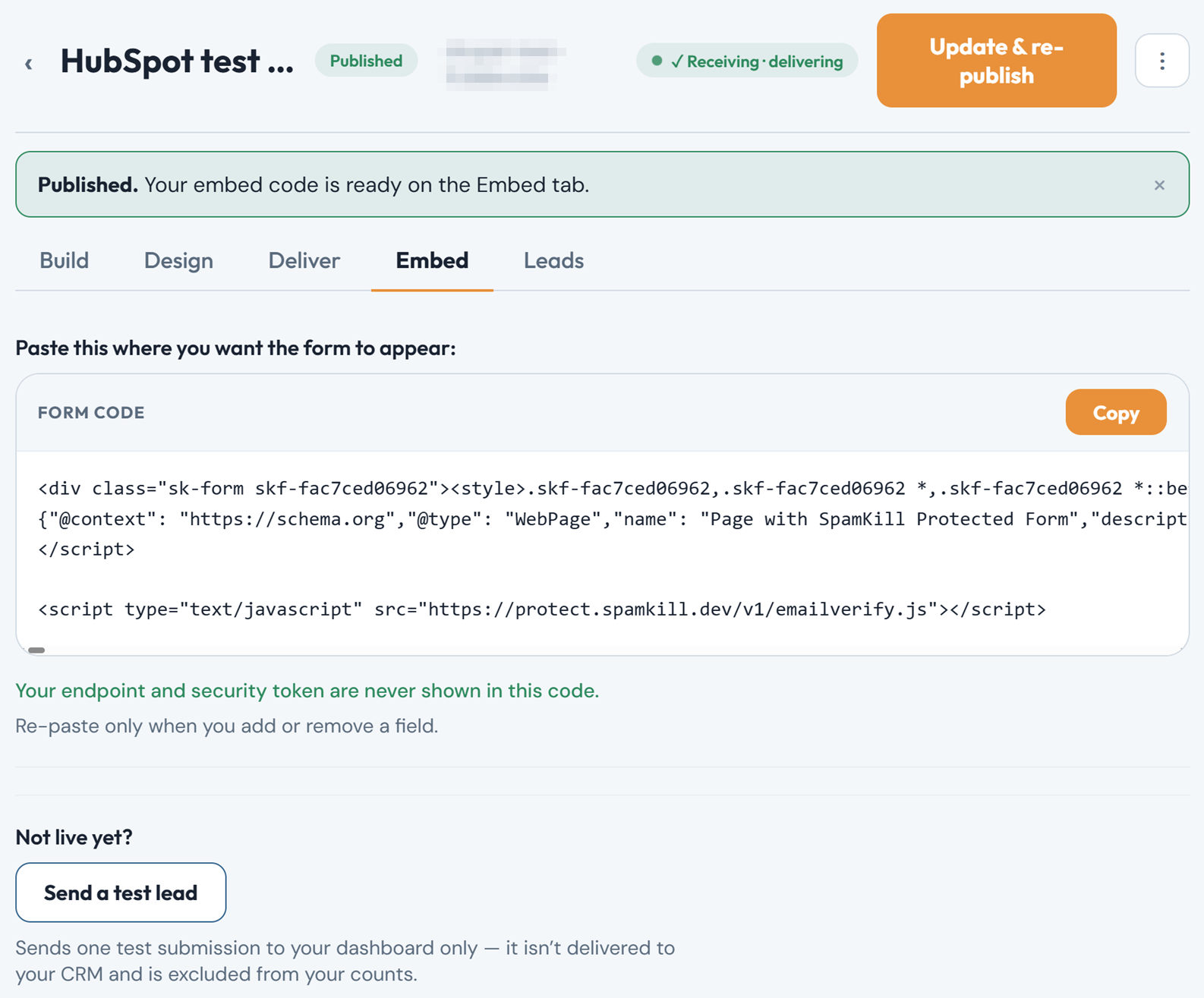
You should see: Your page shows the SpamKill form with your fields, in place of the HubSpot form.
Can't find the HubSpot code on your page?
Search the page's code for hbspt.forms.create. In WordPress it is usually in a Custom HTML block. Keep a copy of it somewhere safe in case you want to undo.
Test it with a real submission
Open your page in a private window and fill in the form the way a customer would. Use an email address you can recognise. Then check both places below.
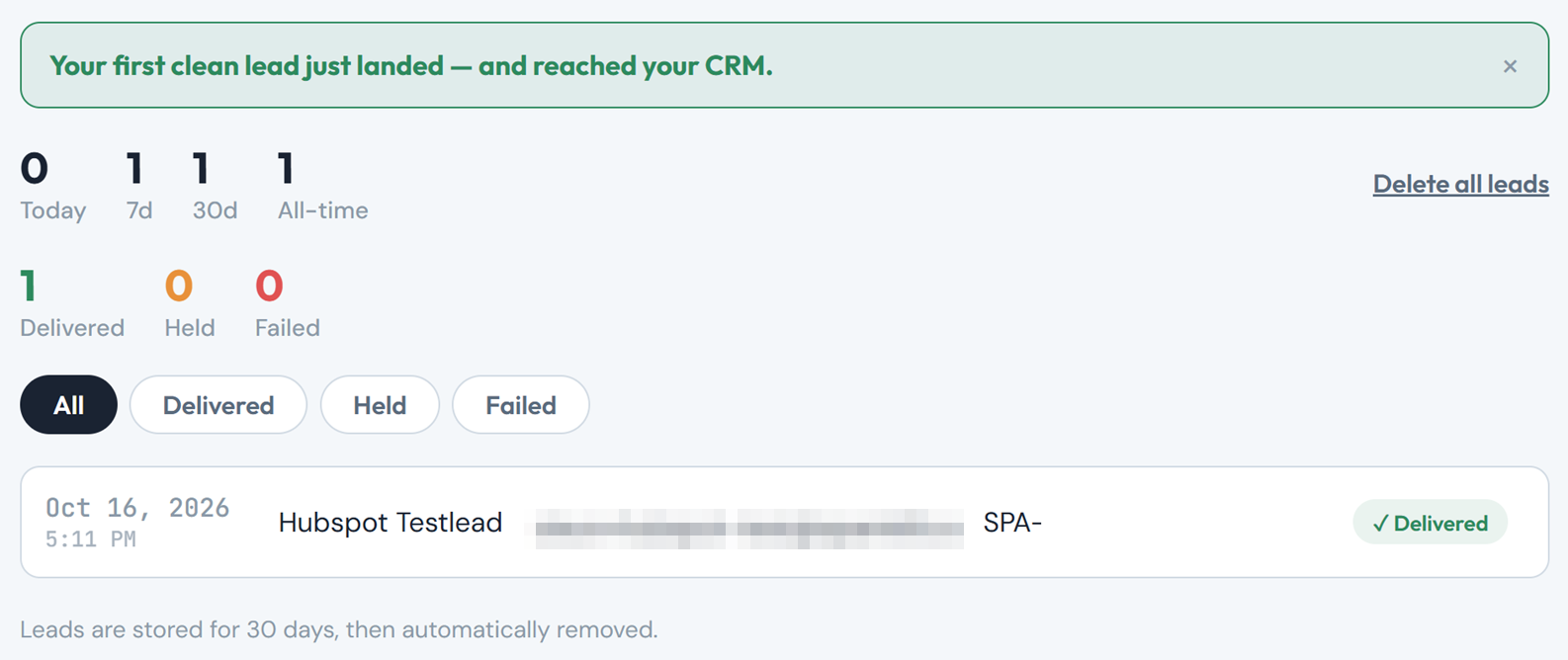
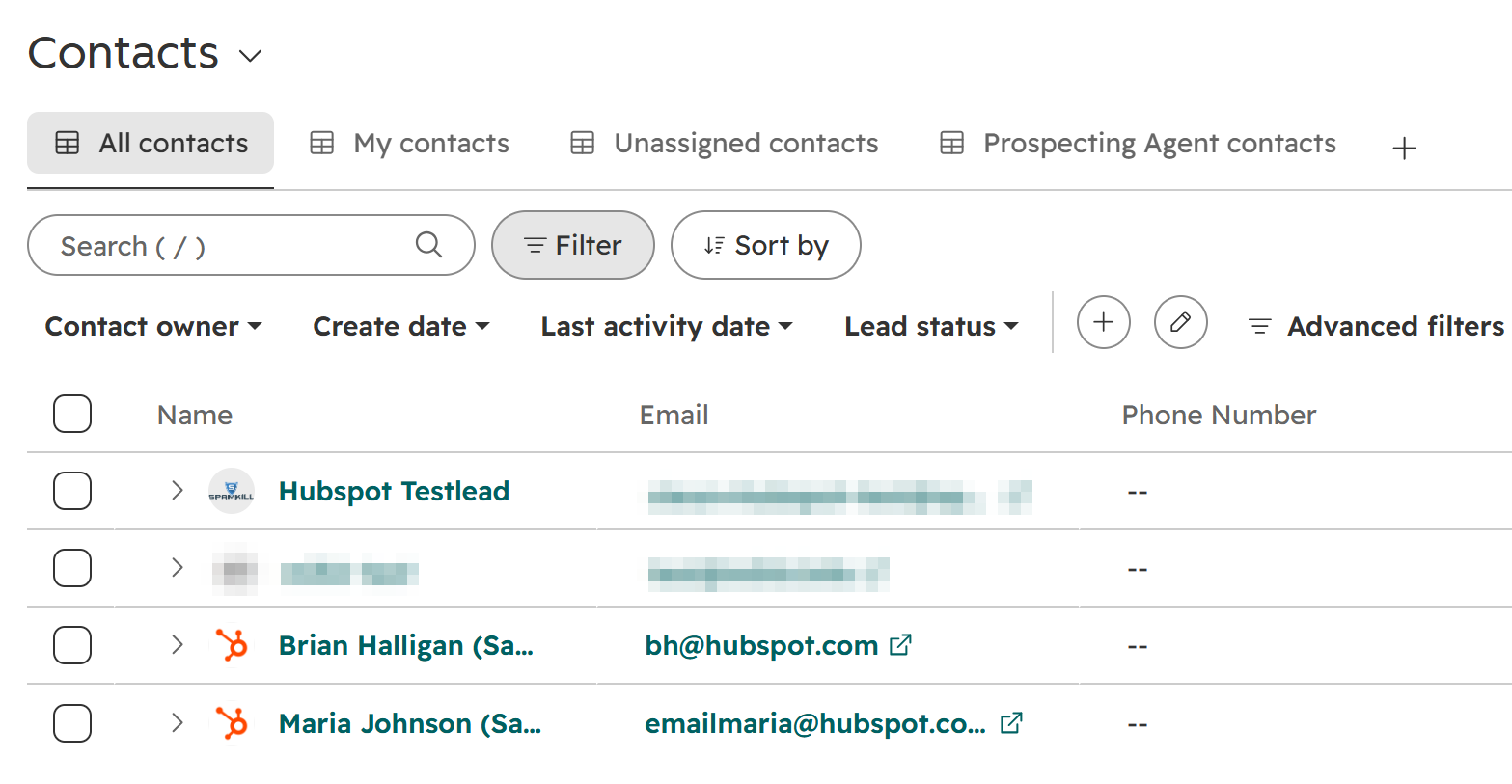
Your test shows as Delivered on the form's Leads tab.
The test contact appears in Contacts, with first and last name filled in.
You should see: A Thanks — we got your response. page right after you submit.
Your HubSpot form is protected
- Bots are stopped before they reach HubSpot.
- Real leads arrive exactly as before, with no extra steps for them.
- Every block is logged in your SpamKill dashboard.
Something not working?
Find what you're seeing.
My HubSpot workflow didn't start
Workflows that start on a HubSpot form submission won't fire, because the lead now arrives through SpamKill instead. Change the trigger to the contact being created or to list membership. On the Deliver tab you can add every new contact to a static list to trigger on.
Leads show in SpamKill but not in HubSpot
Open the form's Leads tab and filter by Failed. Then check the Deliver tab still shows HubSpot as Connected. If it doesn't, click Connect again and choose the same HubSpot account.
My test doesn't appear anywhere
Make sure the page you tested has the SpamKill code, not the old HubSpot code, and that it was saved and published. Then check the form is Published in the Form Builder.
A field is missing from the HubSpot contact
It is probably set to Not sent on the Deliver tab. Pick a HubSpot property for it, click Save mapping, then Update & re-publish.
Changed your mind? Undo in under a minute
- Open the page in your website editor.
- Delete the SpamKill code and paste your original HubSpot embed code back.
- Save and publish the page. Your HubSpot form is back to how it was.
- Optional: in the Form Builder, click Disconnect on the form's Deliver tab.
Thanks! Glad your form is protected.
Sorry about that. Tell us which step tripped you up and we'll fix the guide.
Stuck? We'll set it up with you.
Free setup help for every plan. Send us a message and we'll walk through your HubSpot form with you.
Get setup help