Protect your Follow Up Boss form from bots
In short: To stop spam leads reaching Follow Up Boss from your website, build your form once in the SpamKill Form Builder, connect Follow Up Boss, and paste the SpamKill form on your site. SpamKill checks every submission without a CAPTCHA, and real leads land in your Lead Flow with your tags. It takes about 10 minutes.
Bots filling in your website form become fake leads that your agents chase in Follow Up Boss. Build the form once in SpamKill and connect Follow Up Boss. Real leads keep arriving through your Lead Flow, so your routing and action plans stay as they are. It takes about 10 minutes.
- 6 steps
- About 10 min
- Copy and paste one snippet
Last verified on Follow Up Boss (trial account) with SpamKill Forms
What changes, and what doesn't
- Leads still arrive in Follow Up Boss as people, with an inquiry on their timeline
- Your Lead Flow: agent assignment, ponds and action plans
- Your existing people and their tags
- A SpamKill form on your website, with the fields you choose
- Every submission is checked before it reaches Follow Up Boss
- Undo it anytime by putting your old form back
Before you start
Have these ready so nothing stops you halfway.
- A SpamKill accountNo account yet? Start a free trial.
- A Follow Up Boss login as the owner or an adminYou approve SpamKill once, on Follow Up Boss's own screen.
- Access to the page your form goes onFor example your WordPress, Webflow or Squarespace editor, or your landing page builder.
Quick setup
For returning users. Each line links to its full step.
- In SpamKill, open Form Builder and click Create form. Step 1
- On the Build tab, add the fields your leads should fill in. Step 2
- On the Deliver tab, click Connect on Follow Up Boss, sign in and click Grant Access. Step 3
- Click Use this on Follow Up Boss, check the mapping, and set optional tags and a source. Step 4
- Click Save mapping, send a test lead, then click Publish form. Step 5
- Copy the code from the Embed tab and paste it where your form should appear. Step 6
Create your SpamKill form
Where: SpamKill ConsoleForm BuilderForms
In the SpamKill Console, click Form Builder in the sidebar, then Create form. Pick the starting point closest to the form you use today (1). Give the form a name and pick your website under Subscription. Click Create (2).
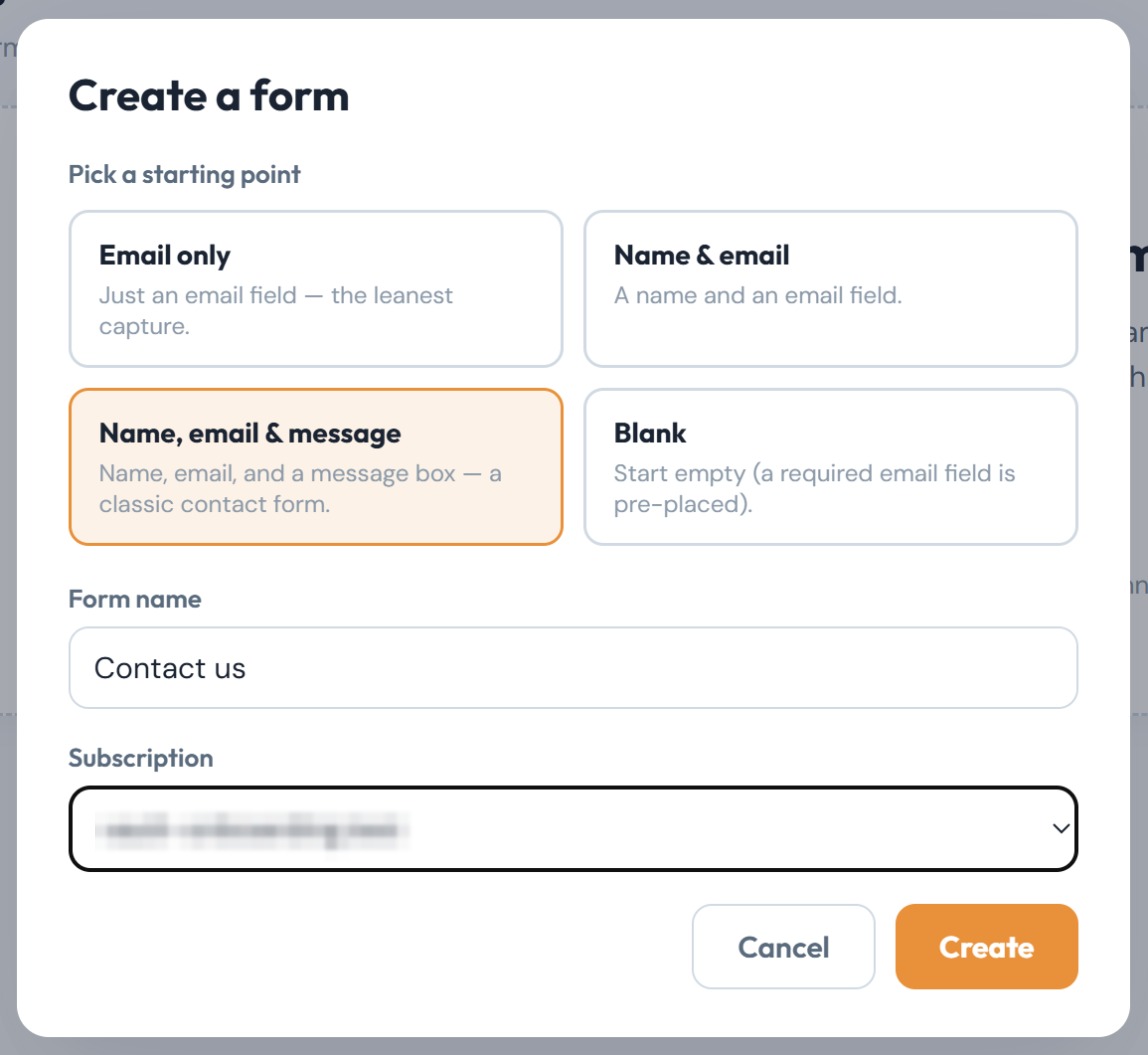
You should see: Your new form open on the Build tab, marked Draft.
Add the fields you need
Where: Form BuilderYour formBuild
Add each field you want from Common fields (1). Reorder or remove fields in your form (2). Every form keeps one required Email field. A Phone field helps Follow Up Boss match returning people.
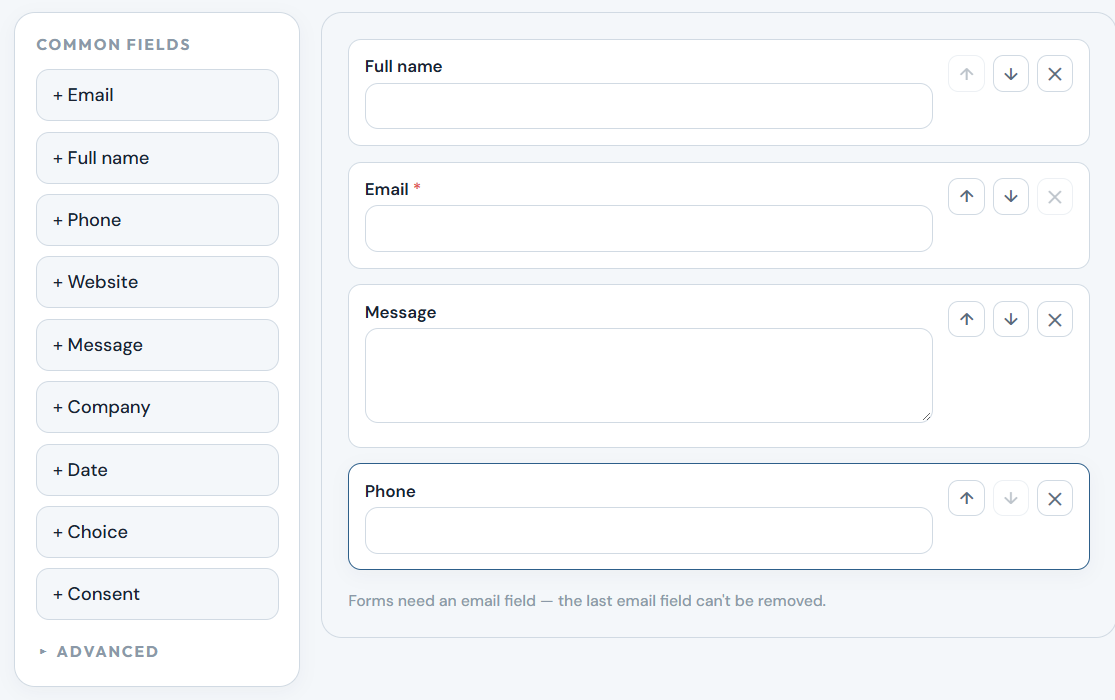
You should see: Your form with the fields you need. Changes save on their own.
Want it to look like your old form?
Use the Design tab to pick colours, font and label position. Style changes apply when you publish.
Connect Follow Up Boss
Where: Form BuilderYour formDeliver
Open the Deliver tab. Under Add a CRM, click Connect on Follow Up Boss (1). Sign in to Follow Up Boss if it asks. On the screen asking to access your Follow Up Boss account, click Grant Access (2).
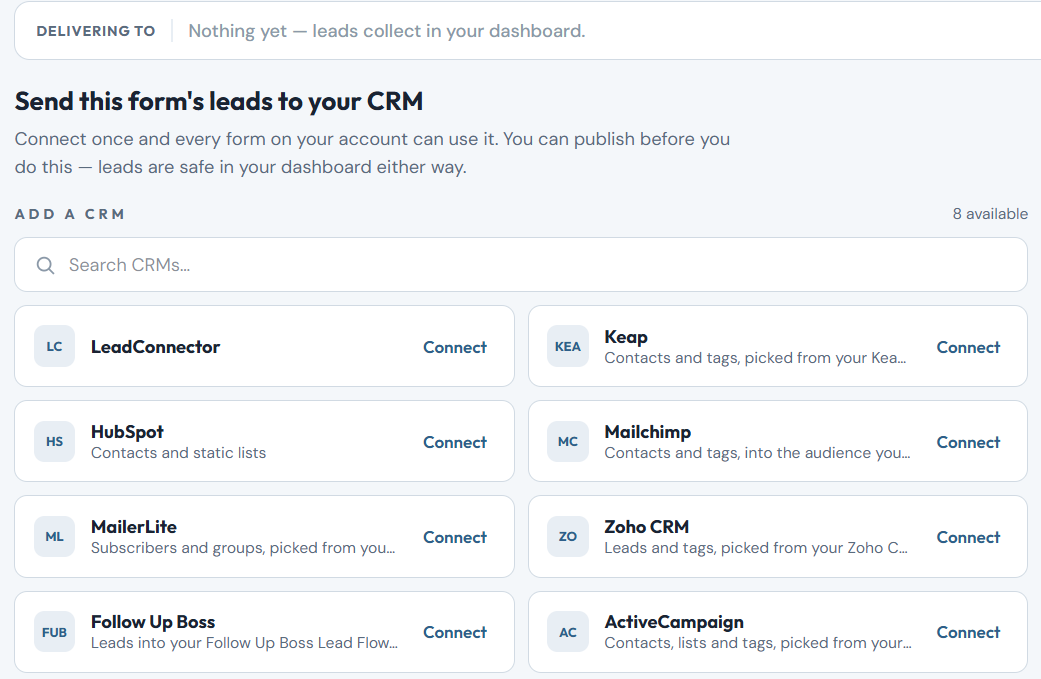
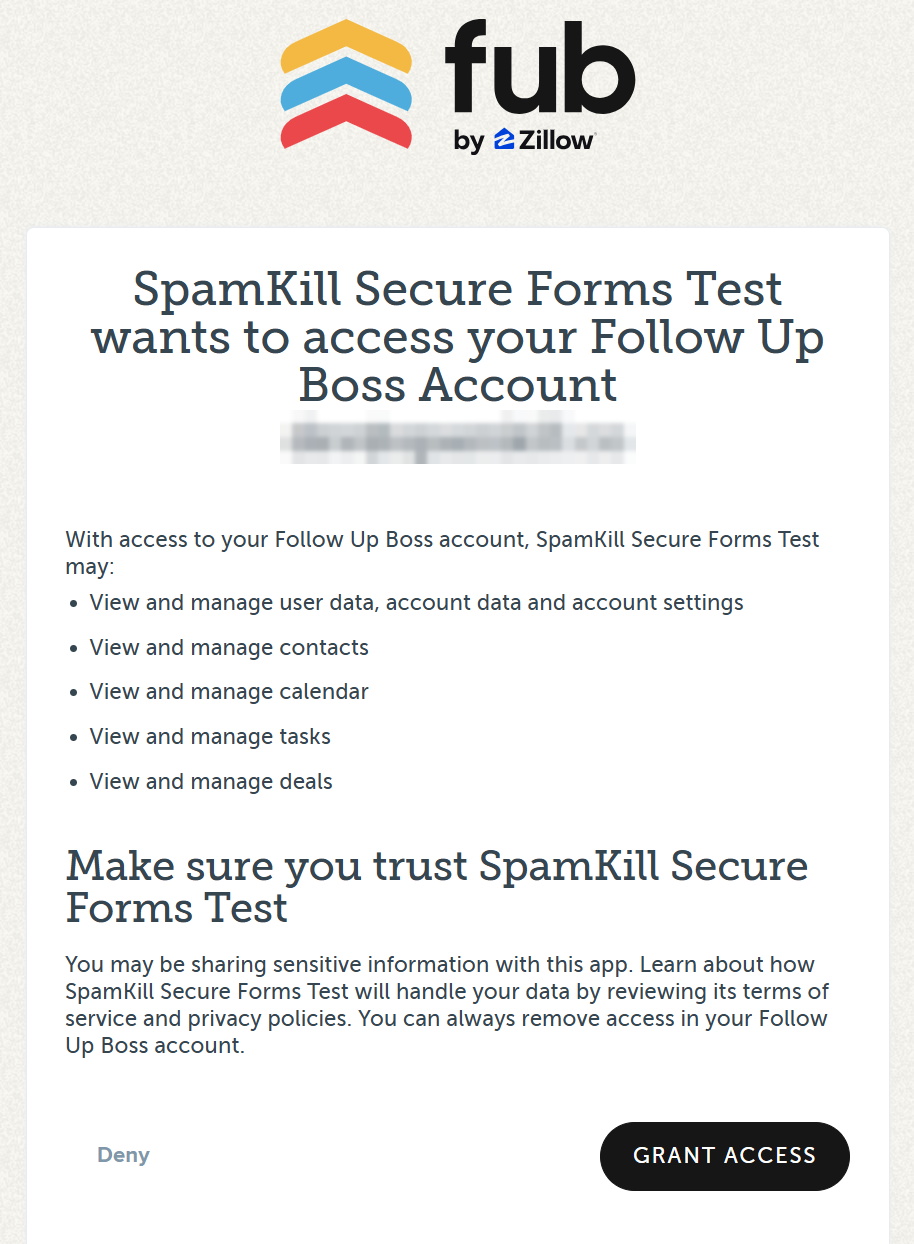
You should see: Back in SpamKill, a green Connected. message, and Follow Up Boss under Your CRMs marked Already connected.
Why does it ask for so much access?
Follow Up Boss only offers access to the whole account. SpamKill only sends new leads, and reads your custom fields and account ID.
Map fields, tags and source
Where: Form BuilderYour formDeliver
Click Use this on Follow Up Boss (1). SpamKill matches your fields and splits Full name into first and last name. Under Tags (optional), type the tags you want on every new lead (2). Under Source (optional), type the source your Lead Flow should route on (3). Leave it blank to use your website's address.
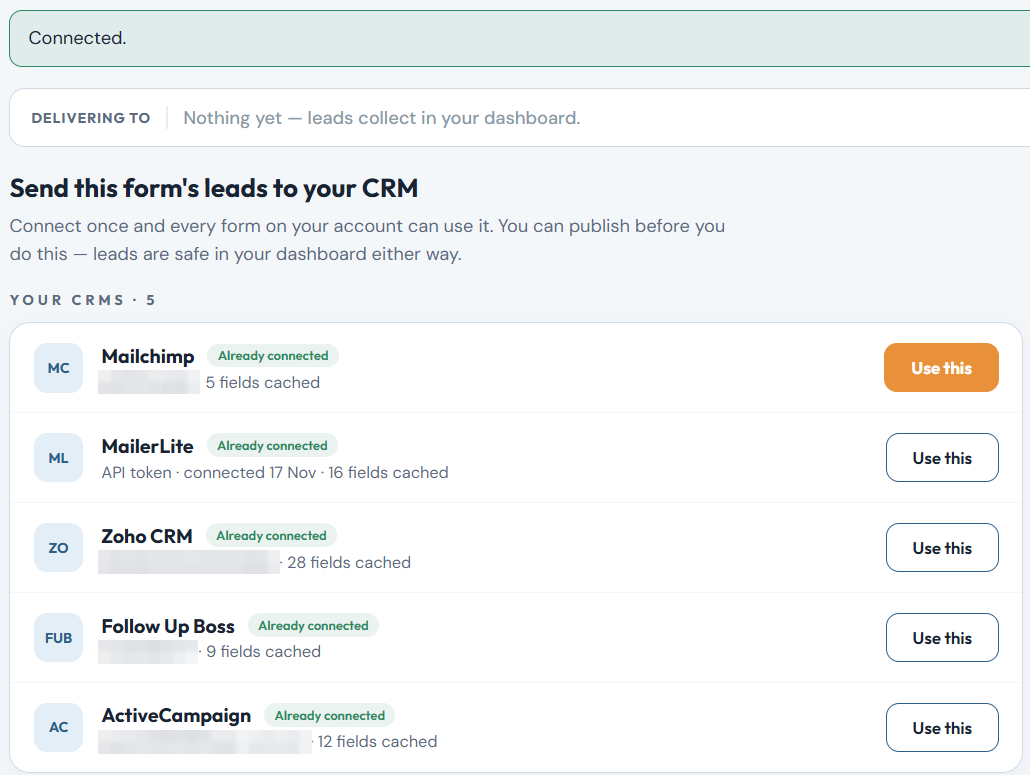
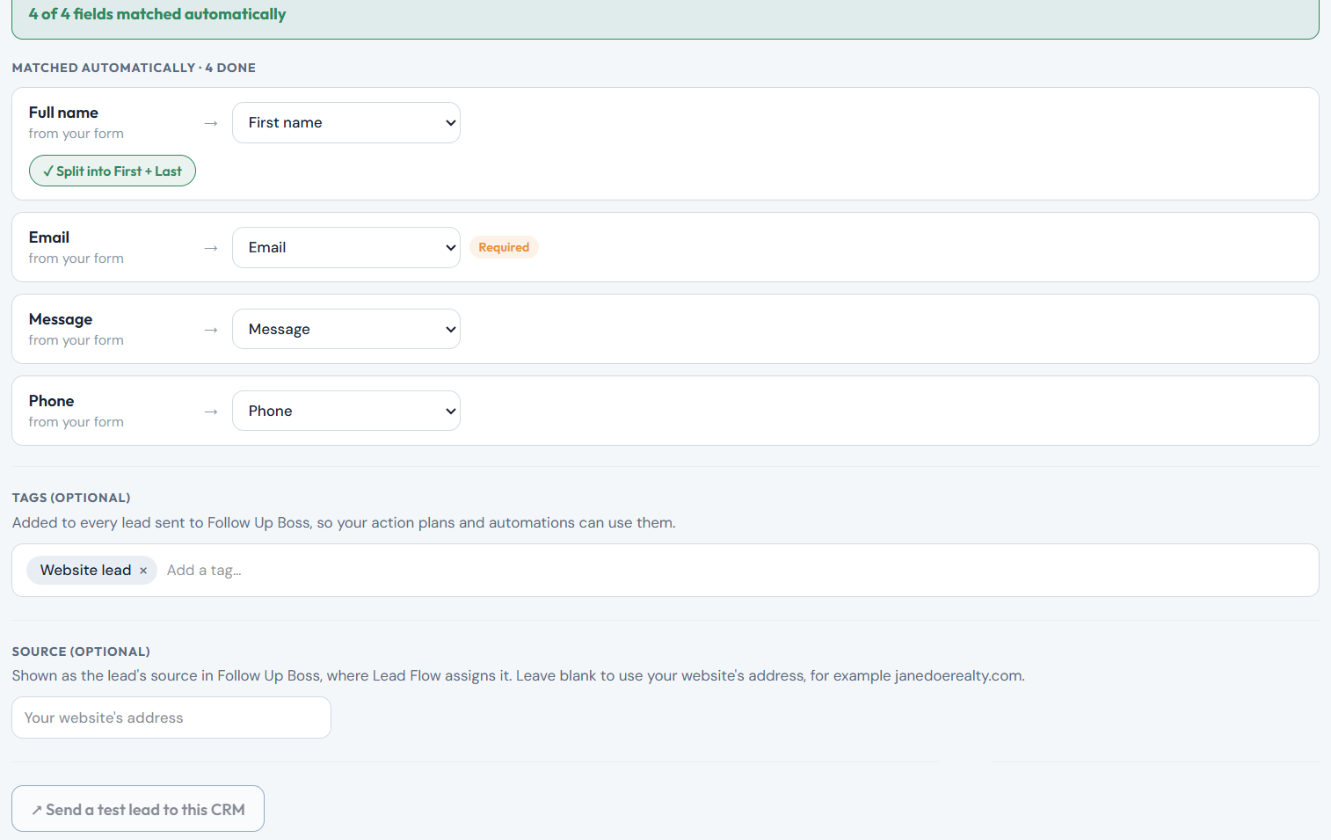
You should see: Delivering to Follow Up Boss at the top, and every field matched or set to Not sent.
Tags added, not replaced?
Yes. Tags are added to a person's existing tags. Tags you added by hand stay.
Test and publish
Where: Form BuilderYour formDeliver
Click Save mapping. Click Send a test lead to this CRM (1) and check the person in Follow Up Boss. Then click Publish form (2).
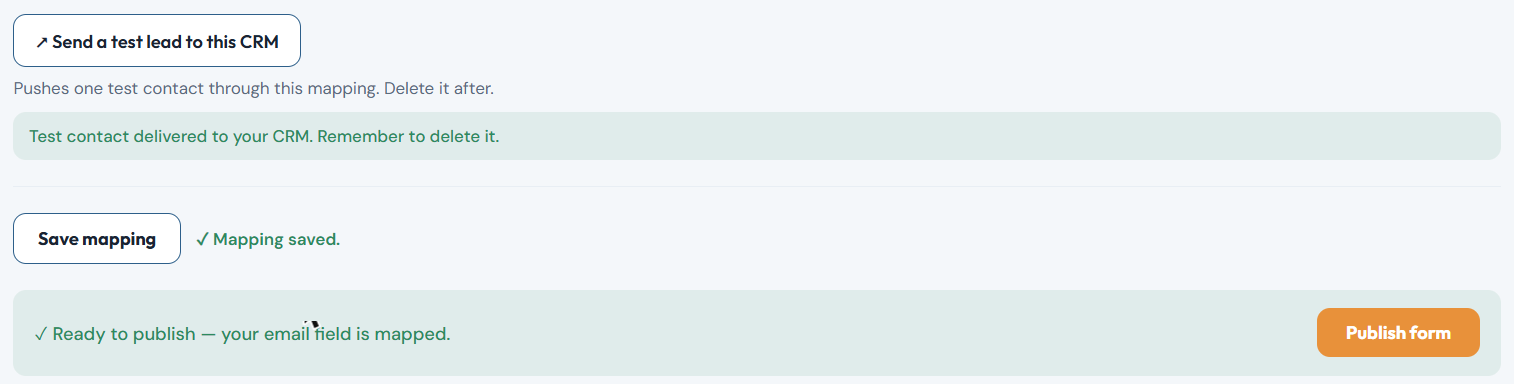
Test contact delivered to your CRM. under the test button.
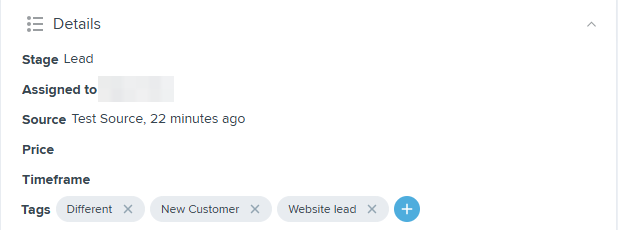
A person with your own email address under People, with your tag and a new inquiry on their timeline.
You should see: The form's badge changes from Draft to Published.
What source does the test lead use?
SpamKill, because a test lead has no web page. Real leads use your Source, or your website's address. Delete the test person when you're done.
Place the form on your page
Where: Form BuilderYour formEmbed
On the Embed tab, click Copy (1). Open the page in your website editor. Paste the code where the form should appear, replacing your old form. Save and publish the page.
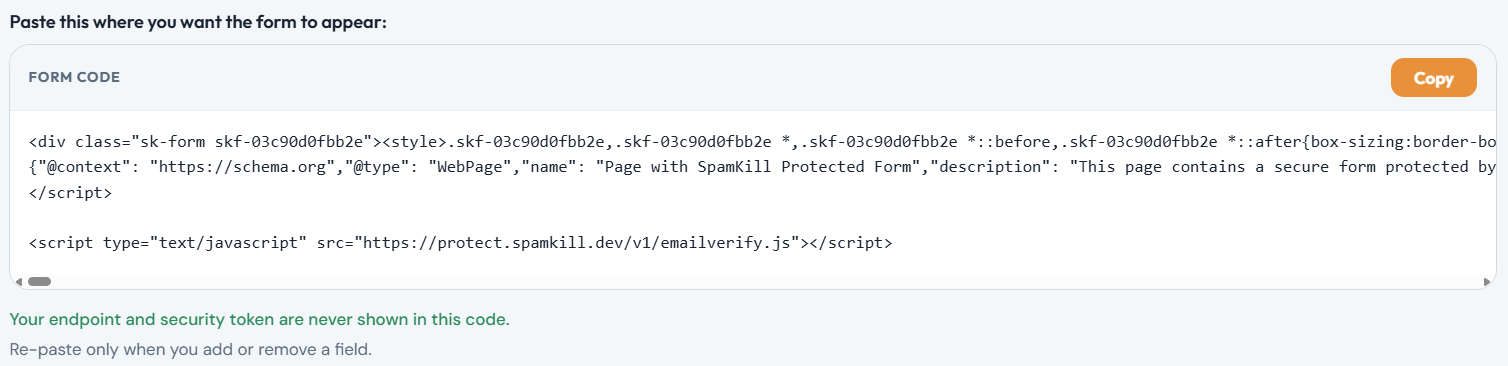
You should see: Your page shows the SpamKill form with your fields. Submit it once to check the lead arrives in Follow Up Boss.
Changed a field later?
Re-paste the code only when you add or remove a field. Other changes apply when you click Update & re-publish.
Your Follow Up Boss form is protected
- Bots are stopped before they reach Follow Up Boss.
- Real leads arrive exactly as before, with no extra steps for them.
- Every block is logged in your SpamKill dashboard.
Something not working?
Find what you're seeing.
A lead shows as Failed with "lead flow … archived"
Follow Up Boss ignores leads for a source whose lead flow is archived. In Follow Up Boss, open Admin › Lead Flow and unarchive that source, or change the Source on the form's Deliver tab.
Leads go to the wrong agent
Follow Up Boss assigns each lead by its source, under Admin › Lead Flow. Set the agent, pond and action plan for your source there.
A returning lead kept their old source
Follow Up Boss keeps a person's first source. The new inquiry is still added to their timeline, and SpamKill doesn't create a duplicate person.
A custom field is missing or empty
Add it in Follow Up Boss under Admin › Custom Fields, then click Refresh fields on the form's Deliver tab and map it. For a dropdown, the answer must match one of the Follow Up Boss choices, or it's left out.
Leads show in SpamKill but not in Follow Up Boss
Open the form's Leads tab and filter by Failed. If the Deliver tab asks you to reconnect Follow Up Boss, reconnect and grant access again. Leads held while the connection was down are sent once it's back.
Changed your mind? Undo in under a minute
- Open the page in your website editor.
- Delete the SpamKill code and put your old form back.
- Save and publish the page.
- Optional: in the Form Builder, click Disconnect on the form's Deliver tab.
Thanks! Glad your form is protected.
Sorry about that. Tell us which step tripped you up and we'll fix the guide.
Stuck? We'll set it up with you.
Free setup help for every plan. Send us a message and we'll walk through your Follow Up Boss form with you.
Get setup help