Protect your Brevo form from bots
In short: To stop spam leads reaching Brevo from your website, build your form once in the SpamKill Form Builder, connect Brevo, and paste the SpamKill form on your site. SpamKill checks every submission without a CAPTCHA, and real leads become Brevo contacts in the lists you choose. It takes about 10 minutes.
Bots filling in your website form become fake contacts in Brevo, and your campaigns and automations go to them. Build the form once in SpamKill and connect Brevo. Real leads keep arriving as contacts in your lists, so your automations stay as they are. It takes about 10 minutes.
- 6 steps
- About 10 min
- Copy and paste one snippet
Last verified on Brevo with SpamKill Forms
What changes, and what doesn't
- Leads still arrive in Brevo as contacts, in the lists you choose
- Your lists, campaigns and automations
- Your existing contacts, and who has unsubscribed
- A SpamKill form on your website, with the fields you choose
- Every submission is checked before it reaches Brevo
- Undo it anytime by putting your old form back
Before you start
Have these ready so nothing stops you halfway.
- A SpamKill accountNo account yet? Start a free trial.
- A Brevo login for the account your contacts are inYou approve SpamKill once, on Brevo's own screen.
- Access to the page your form goes onFor example your WordPress, Webflow or Squarespace editor, or your landing page builder.
Quick setup
For returning users. Each line links to its full step.
- In SpamKill, open Form Builder and click Create form. Step 1
- On the Build tab, add the fields your leads should fill in. Step 2
- On the Deliver tab, click Connect on Brevo, click Continue to Brevo, tick the box and click Authorize. Step 3
- Click Use this on Brevo, check the mapping, and pick optional lists and a phone country. Step 4
- Click Save mapping, send a test lead, then click Publish form. Step 5
- Copy the code from the Embed tab and paste it where your form should appear. Step 6
Create your SpamKill form
Where: SpamKill ConsoleForm BuilderForms
In the SpamKill Console, click Form Builder in the sidebar, then Create form. Pick the starting point closest to the form you use today (1). Give the form a name and pick your website under Subscription. Click Create (2).
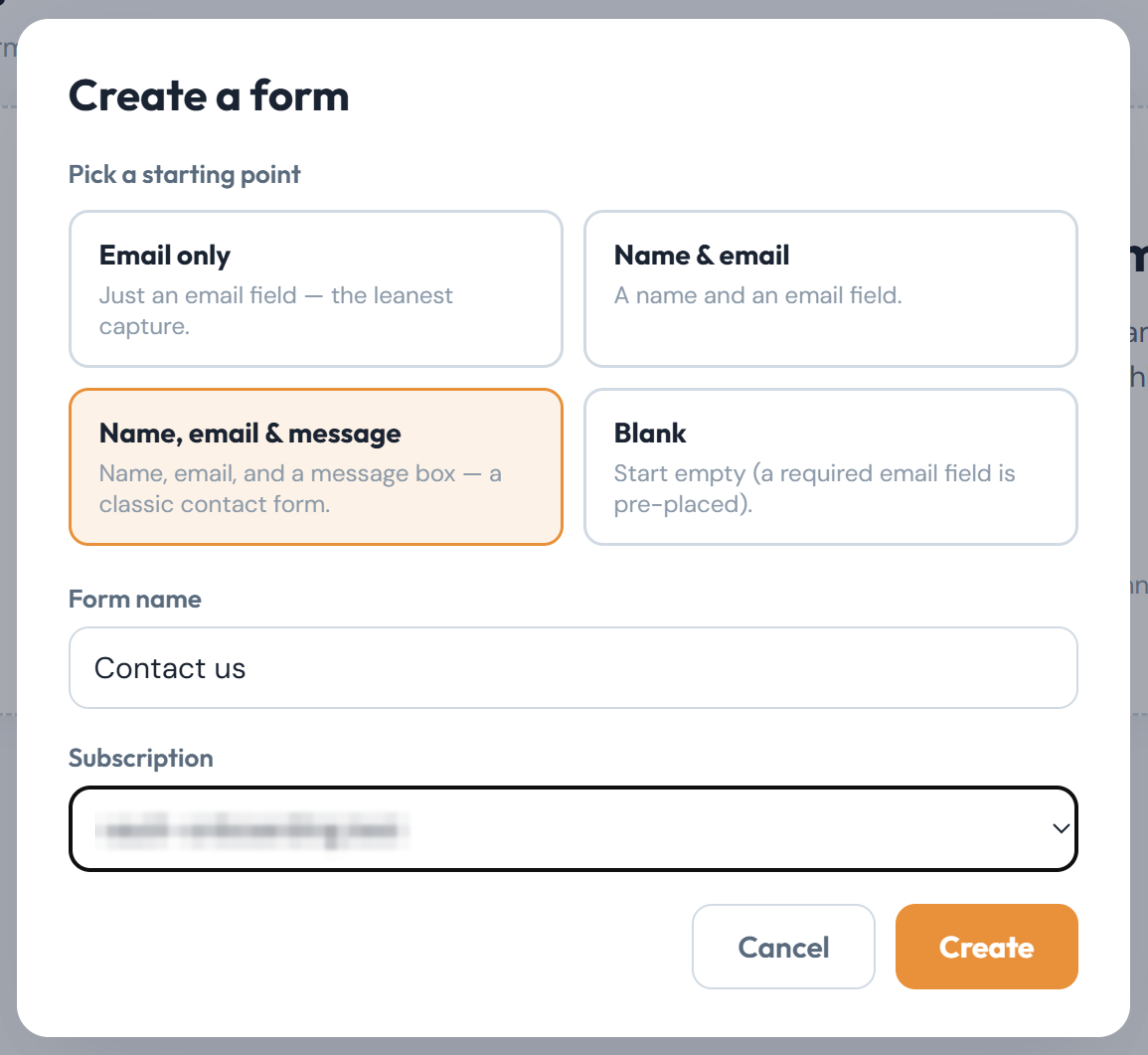
You should see: Your new form open on the Build tab, marked Draft.
Add the fields you need
Where: Form BuilderYour formBuild
Add each field you want from Common fields (1). Reorder or remove fields in your form (2). Every form keeps one required Email field, which is how Brevo matches a returning contact.
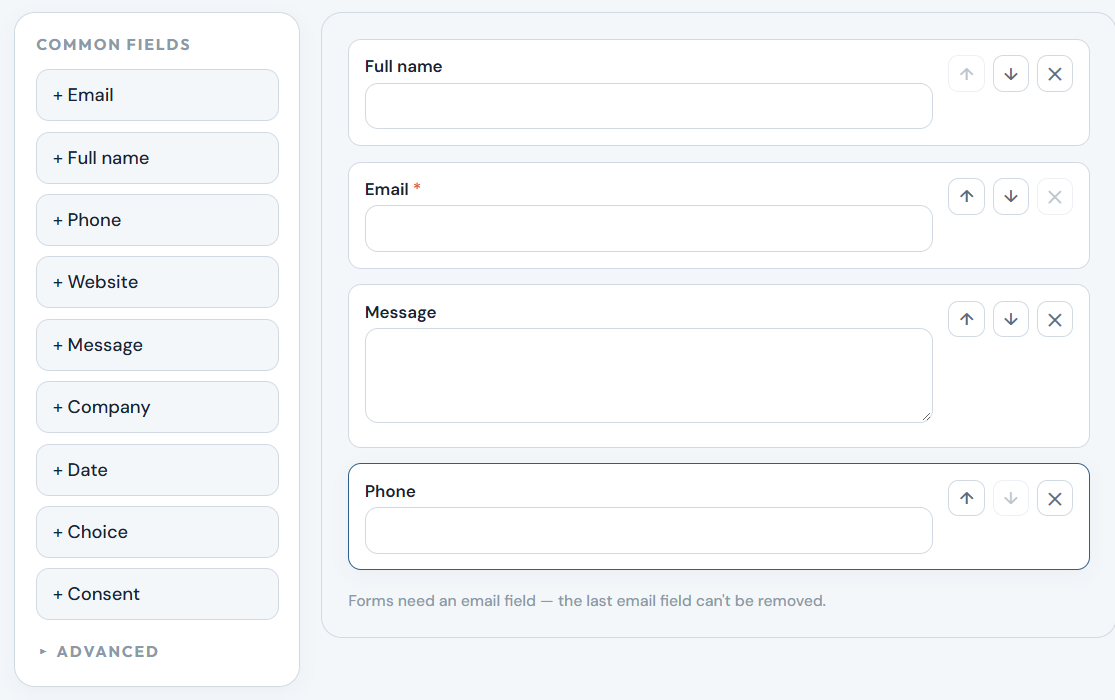
You should see: Your form with the fields you need. Changes save on their own.
Want it to look like your old form?
Use the Design tab to pick colours, font and label position. Style changes apply when you publish.
Connect Brevo
Where: Form BuilderYour formDeliver
Open the Deliver tab. Under Add a CRM, click Connect on Brevo. SpamKill shows a short note that Brevo hasn't reviewed the connector. Click Continue to Brevo (1). Sign in to Brevo if it asks. On Brevo's screen, tick the box that starts I understand and accept (2), then click Authorize (3).
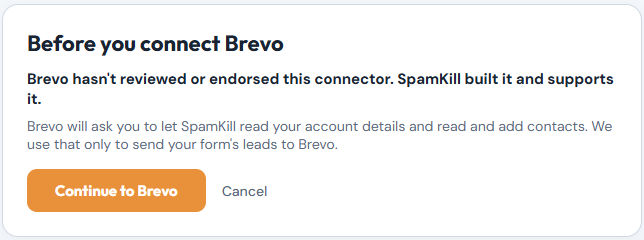
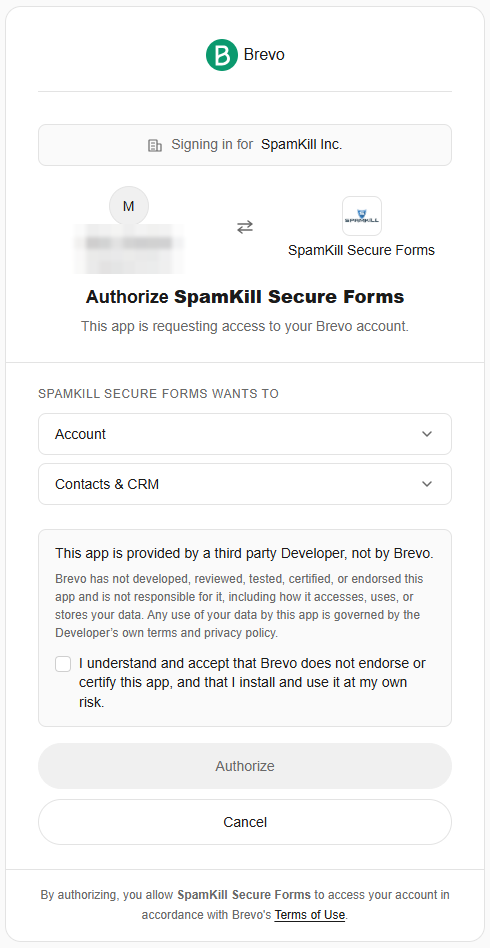
You should see: Back in SpamKill, a green Connected. message, and Brevo under Your CRMs marked Already connected.
Brevo didn't show its Authorize screen?
Brevo remembers your approval. If you've approved SpamKill before, it sends you straight back to SpamKill, connected.
Map fields, lists and phone
Where: Form BuilderYour formDeliver
Under Your CRMs, click Use this on Brevo. SpamKill matches your fields (1) and splits Full name into FIRSTNAME and LASTNAME (2). Brevo fields show by their attribute name, such as CUSTOM_TEXT. A custom field matched for you needs a Confirm click. Under Lists, add the lists every new contact should join (3). If you map a phone, pick the Phone country your visitors are usually in (4).
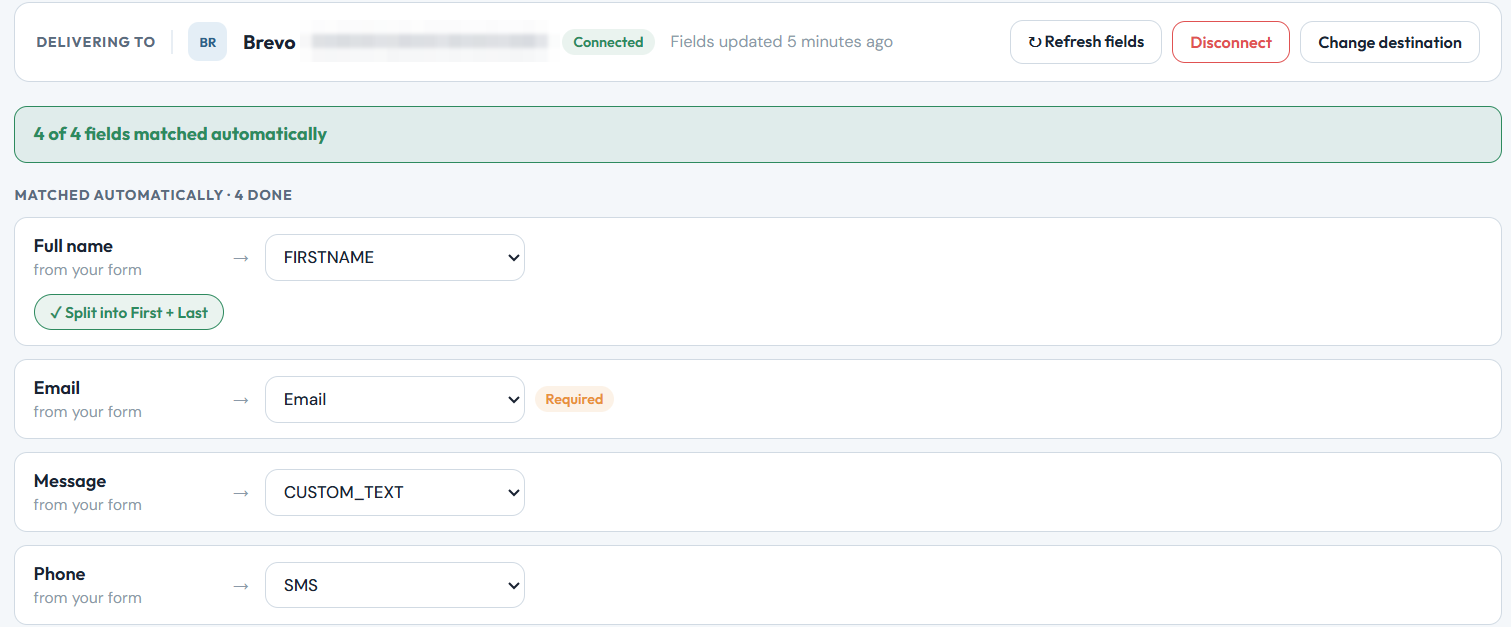
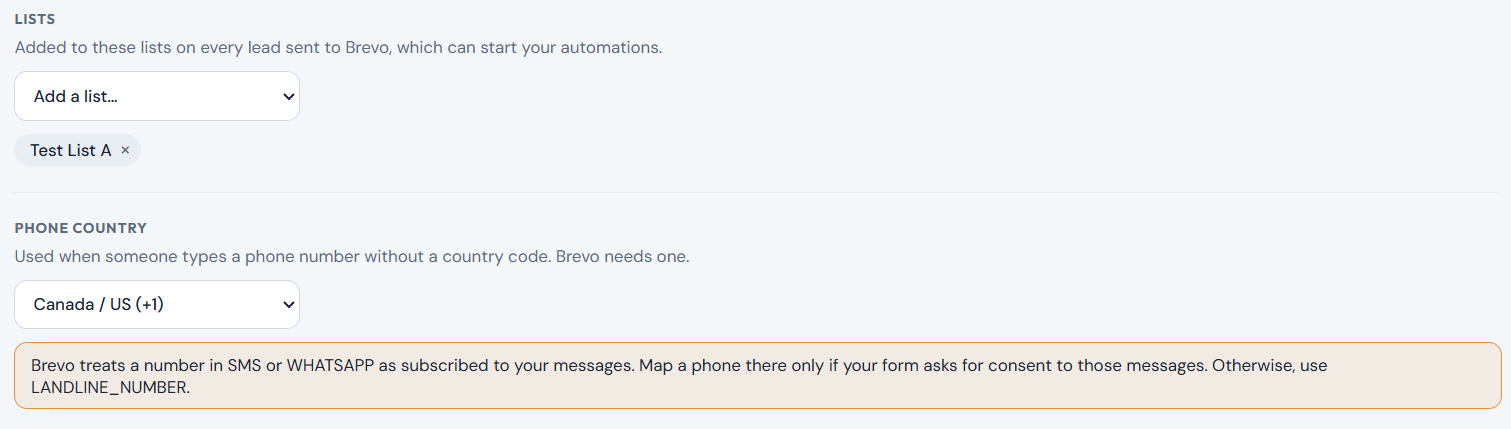
You should see: Delivering to Brevo at the top, and every field matched or set to Not sent.
Should Phone go to SMS?
Only if your form asks for consent to texts. Brevo counts a number in SMS or WHATSAPP as subscribed to your text messages. Otherwise map Phone to LANDLINE_NUMBER.
Test and publish
Where: Form BuilderYour formDeliver
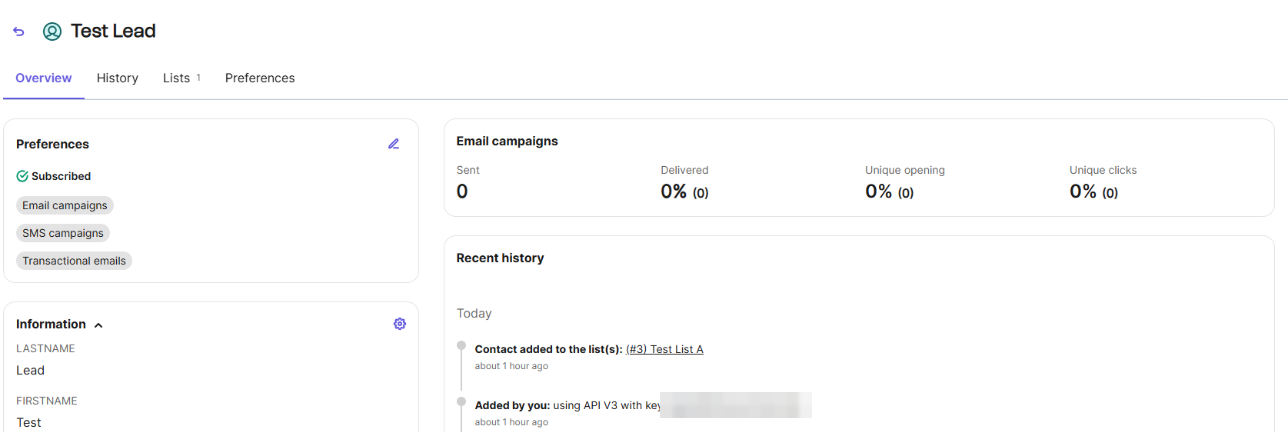
Click Save mapping. Click Send a test lead to this CRM (1) and check the contact in Brevo, under Contacts. Then click Publish form (2).
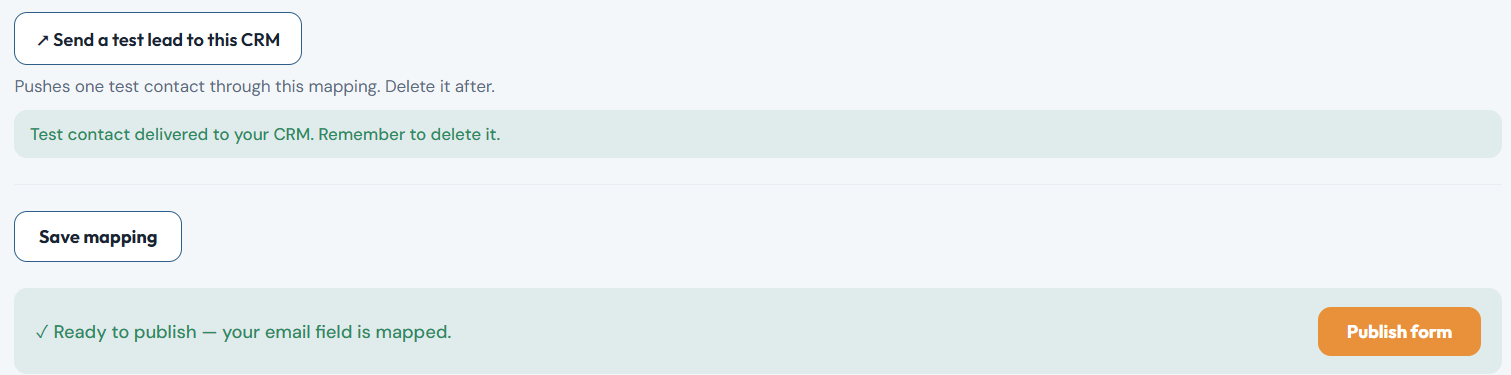
Test contact delivered to your CRM. Remember to delete it. under the test button.
A contact named Test Lead with your own email address, in the lists you chose.
You should see: The form's badge changes from Draft to Published.
The test contact has no phone number?
Brevo allows a phone number on one contact only. If another contact already has it, the rest of the lead arrives without it. Delete the test contact when you're done.
Place the form on your page
Where: Form BuilderYour formEmbed
On the Embed tab, click Copy (1). Open the page in your website editor. Paste the code where the form should appear, replacing your old form. Save and publish the page.
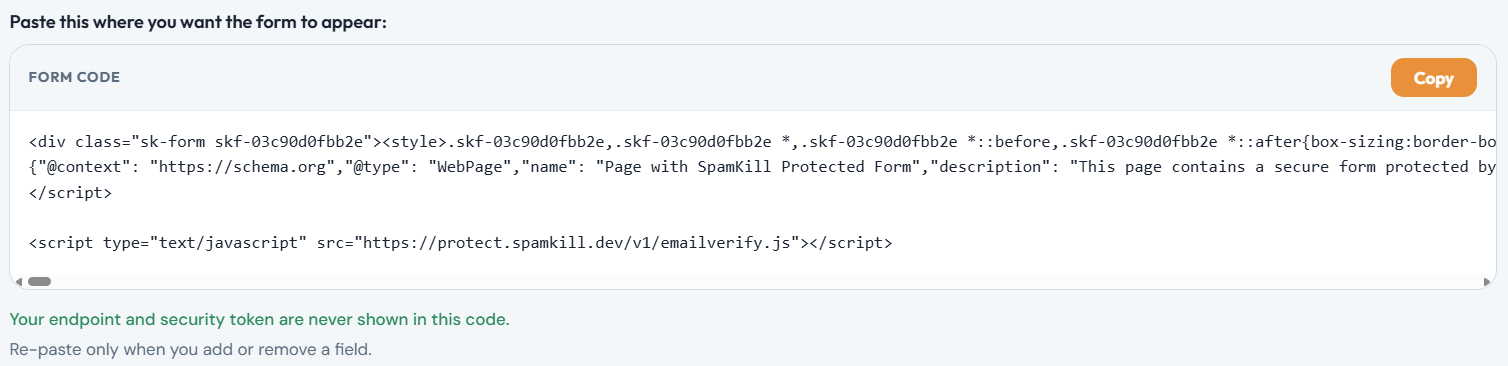
You should see: Your page shows the SpamKill form with your fields. Submit it once to check the contact arrives in Brevo.
Changed a field later?
Re-paste the code only when you add or remove a field. Other changes apply when you click Update & re-publish.
Your Brevo form is protected
- Bots are stopped before they reach Brevo.
- Real leads arrive exactly as before, with no extra steps for them.
- Every block is logged in your SpamKill dashboard.
Something not working?
Find what you're seeing.
A Brevo field isn't in the list
Add it in Brevo under Settings › Contacts › Contact attributes › Create attribute, then click Refresh fields on the form's Deliver tab and map it. Brevo's own fields that start with an underscore, such as the detected country, can't be mapped. Create your own text field instead.
A list isn't offered, or shows as no longer existing
SpamKill only uses lists that already exist. Create one in Brevo under CRM › Contacts › Lists › Create a list, then click Refresh fields. A list deleted in Brevo is skipped, so leads still arrive, and the Deliver tab asks you to remove it.
A choice answer is empty in Brevo
The answer must match one of the Brevo field's choices exactly, or it's left out. For a field with several choices, a returning contact's new answers replace the old ones.
Someone who unsubscribed filled in the form again
They stay unsubscribed. SpamKill updates their details and lists, but never changes who has opted out of email or texts.
Leads show in SpamKill but not in Brevo
Open the form's Leads tab and filter by Failed. If the Deliver tab asks you to reconnect Brevo, reconnect and authorize again. Leads held while the connection was down are sent once it's back.
Changed your mind? Undo in under a minute
- Open the page in your website editor.
- Delete the SpamKill code and put your old form back.
- Save and publish the page.
- Optional: in the Form Builder, click Disconnect on the form's Deliver tab. Brevo has no page for removing connected apps, so this is also how you remove SpamKill's access.
Thanks! Glad your form is protected.
Sorry about that. Tell us which step tripped you up and we'll fix the guide.
Stuck? We'll set it up with you.
Free setup help for every plan. Send us a message and we'll walk through your Brevo form with you.
Get setup help